







































Accounting
The workspace's double-entry books: the chart of accounts, journal entries posted by every sale, purchase, payment and payroll run, the trial balance and general ledger, cost centres, recurring entries, fixed assets with their depreciation, and the financial statements.
| At a glance | |
|---|---|
| Type | Business module |
| Group | Bill |
| Needs | Nothing |
| Included in | Shops & counters, Manufacturing, Hotel / guest house, Trusts & non-profits, Clinics, Services & appointments, Wholesale & building materials and others |
| Offered to | Every industry pack |
| Permissions | View accounting (accounting.view), Manage accounting (accounting.manage) |
Switching it on
Workspace → Modules → Accounting → Enable (needs Manage modules). Accounting and Assets appear under Bill, and Settings gains an Accounting page. Every workspace already has a chart of accounts, so nothing has to be set up before the first posting.
How entries get there
With Auto post on (Settings → Accounting), the books keep themselves: invoices, receipts, refunds, vendor bills, vendor payments, expenses, payroll, stock receipts and production runs each post their own journal entry as they happen, tagged with their cost centre. Manual entries are for everything else (opening balances, adjustments, accruals).
The ledger
Bill → Accounting has six tabs:
| Tab | What it shows |
|---|---|
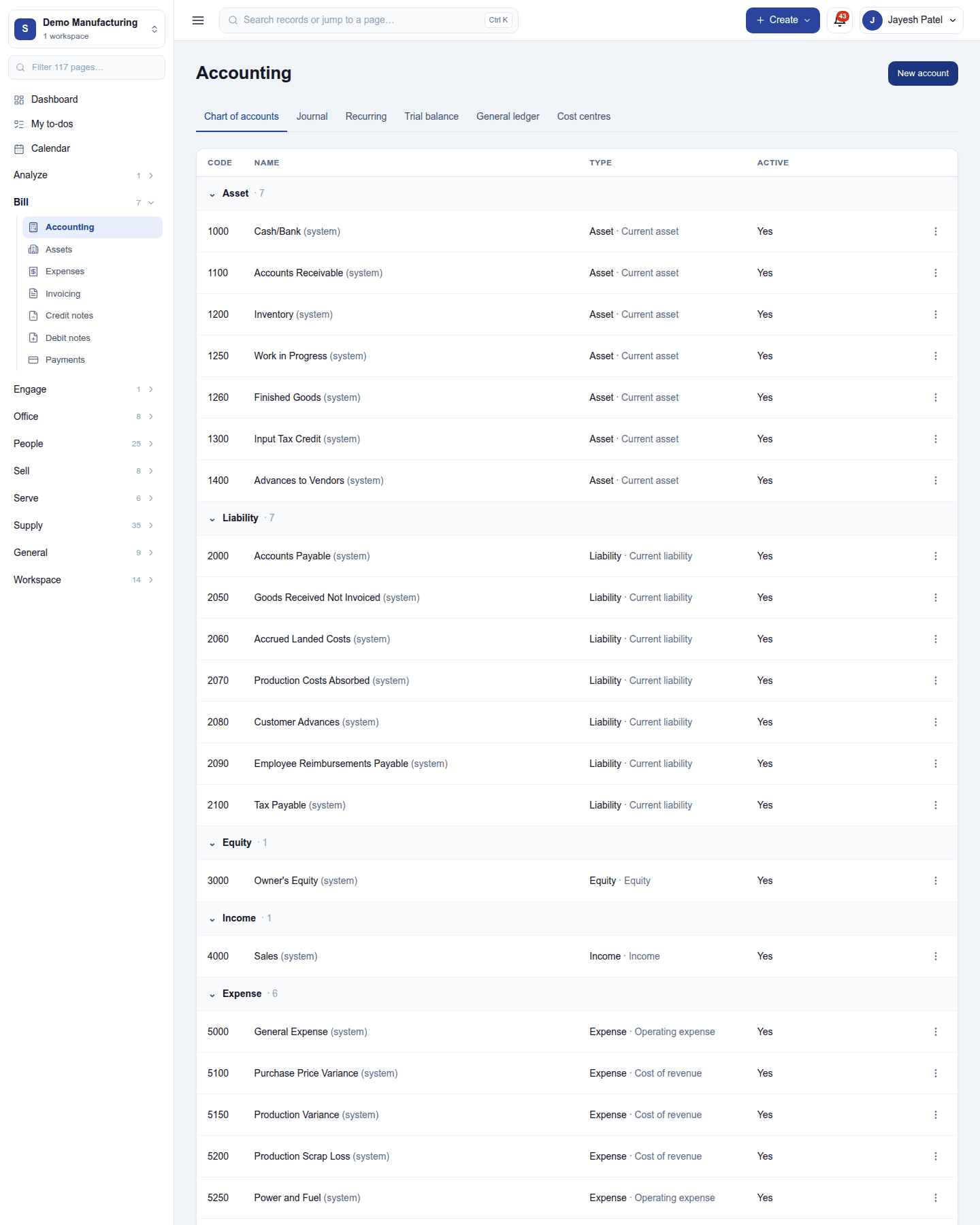
| Chart of accounts | Every account by type (Asset, Liability, Equity, Income, Expense) with its code, subtype and whether it is active. New account; an account's ⋮ menu edits, switches off or merges it into another. (system) accounts are the ones postings rely on. |
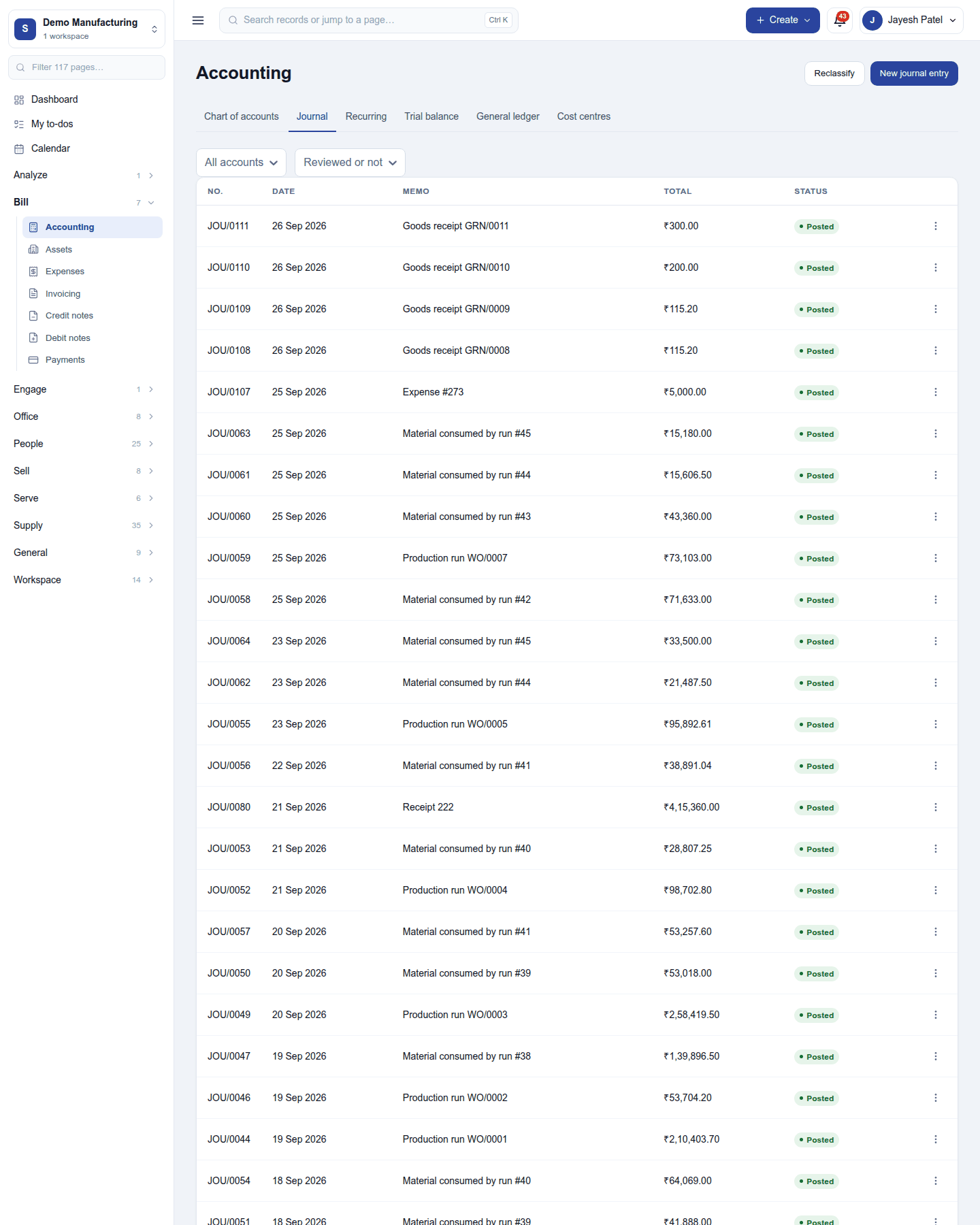
| Journal | Every journal entry (JOU/…) with its date, memo, total and status, filtered by account and by review. An entry's ⋮ menu marks it reviewed, opens its documents, or reverses it. New journal entry posts by hand; Reclassify moves postings to another account. |
| Recurring | Entries that post themselves on a schedule, such as a monthly rent accrual. |
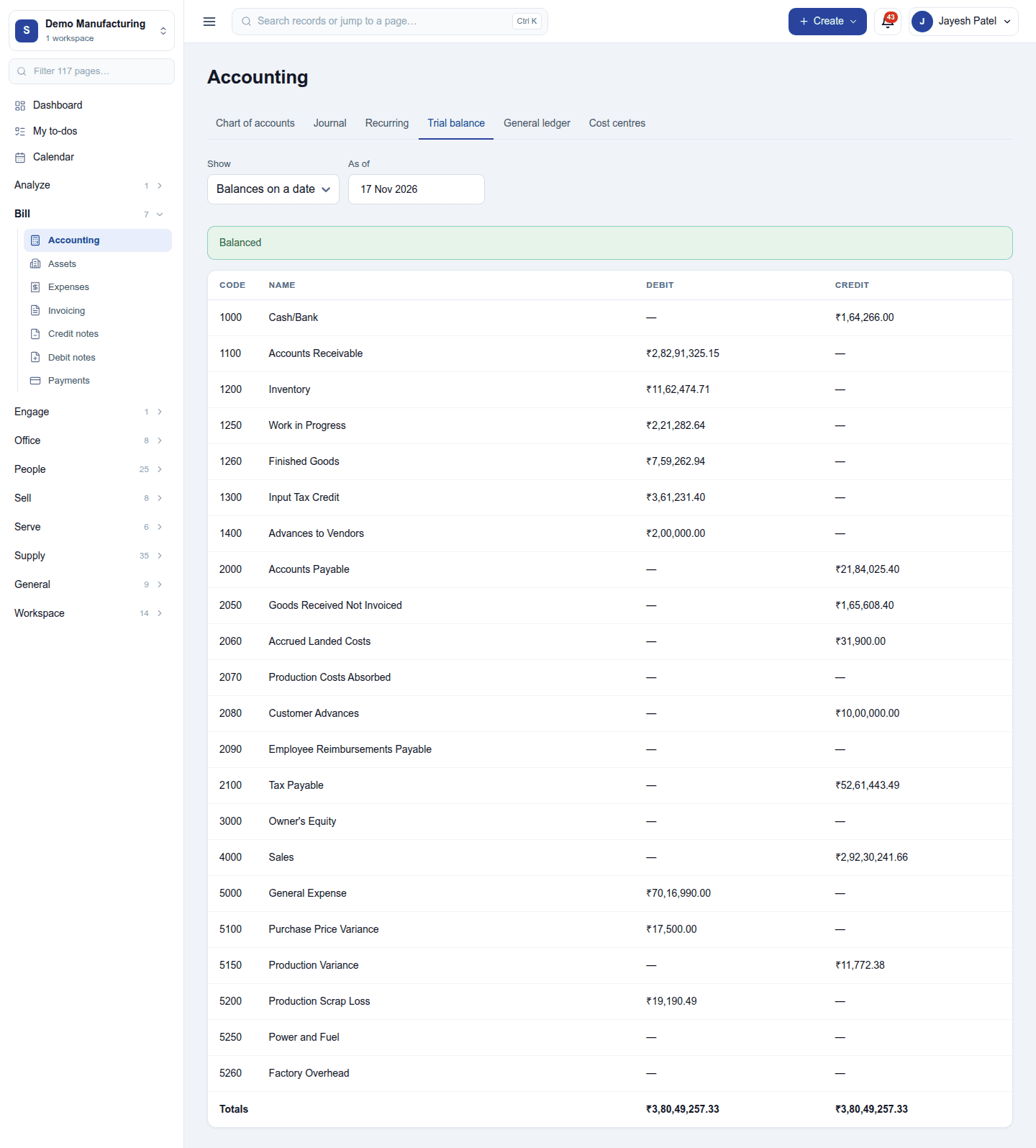
| Trial balance | Every account's debit and credit balance on a date, or its movement over a period, with a Balanced check. |
| General ledger | One account's postings over a period, with the running balance. |
| Cost centres | Branches, projects or funds that postings are tagged with, with what each received and spent. |
The profit and loss, balance sheet and cash flow statement are under Reports → Accounting, read straight off the same postings.
Fixed assets
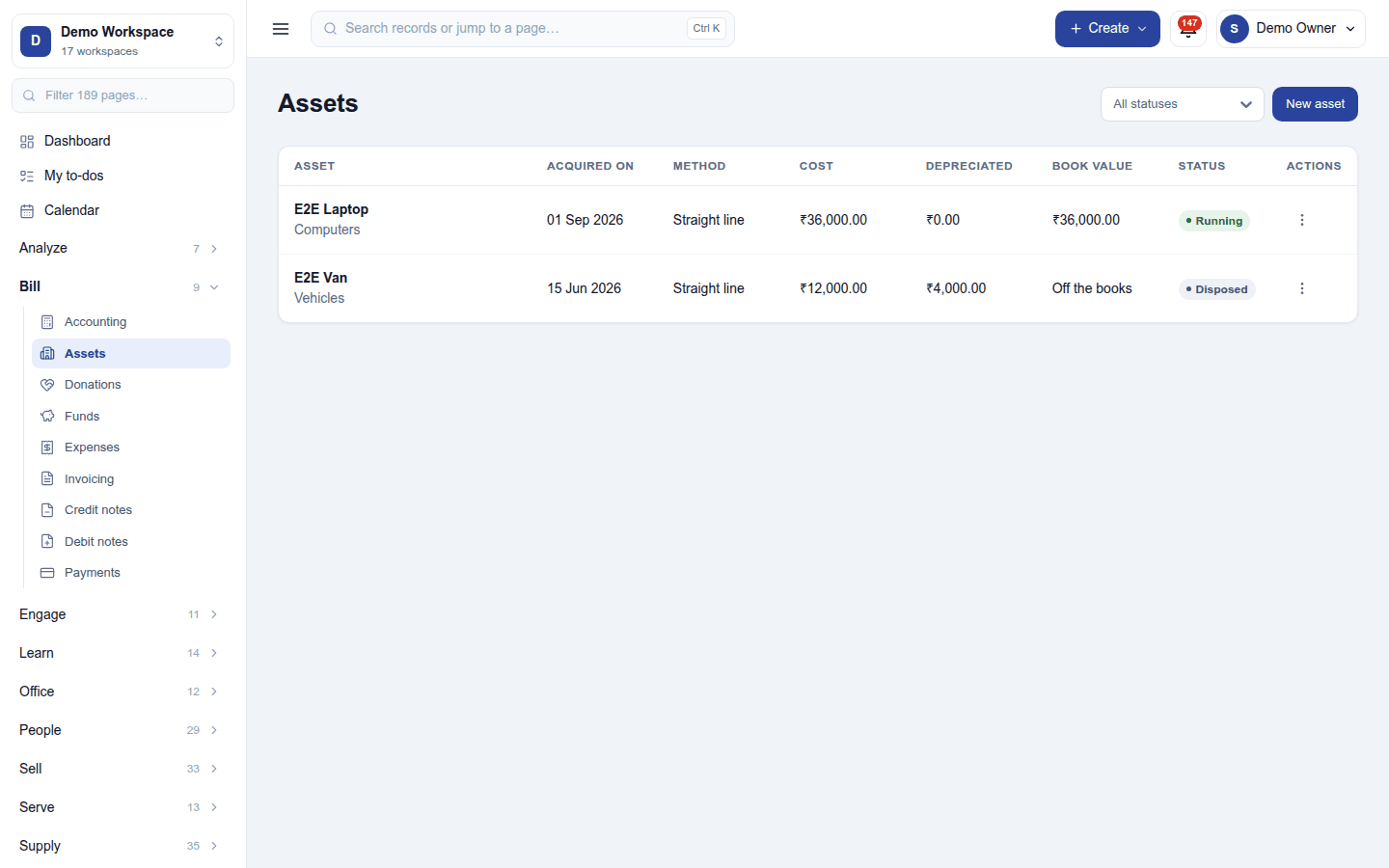
Bill → Assets is the fixed-asset register: each vehicle, machine or computer with when it was acquired, the method (straight line or written-down value), cost, depreciation so far, book value and status (Running, Disposed …). New asset registers one; a line on a vendor bill can become an asset from the bill's own page. Depreciation (book depreciation, straight line or written-down value) posts every month by itself; disposing of an asset takes it off the books with its gain or loss. The register needs the plan's Fixed assets feature (Growth and Pro).
Settings
Settings → Accounting:
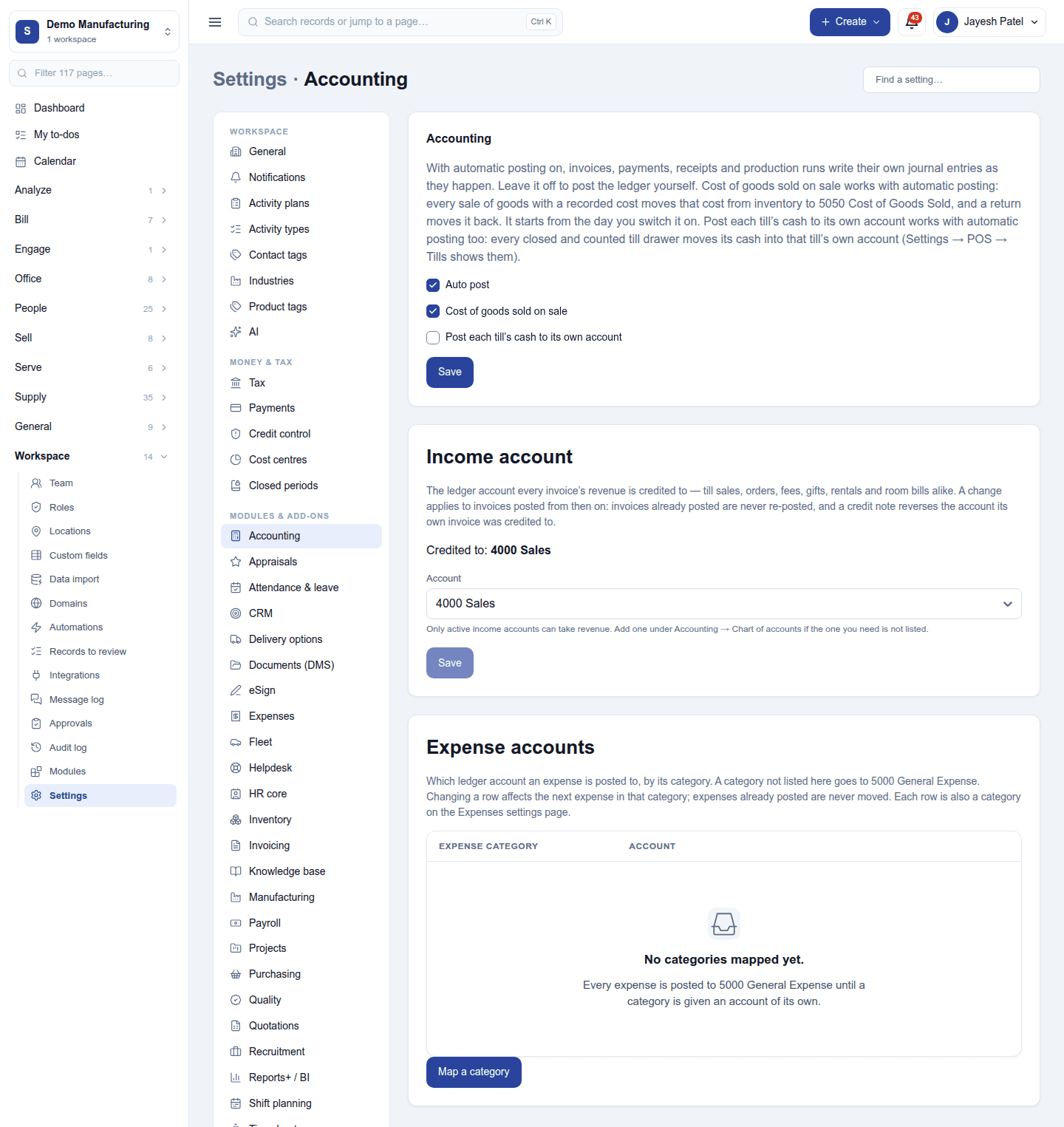
| Card | Setting | Default | What it does |
|---|---|---|---|
| Accounting | Auto post | Off | Postings from invoices, payments, bills, expenses, payroll and production go to the ledger as they happen. |
| Cost of goods sold on sale | Off | Each sale of stock moves its cost from Inventory to Cost of goods sold. | |
| Post each till's cash to its own account | Off | Each POS register's cash posts to its own cash account. | |
| Income account | (an account) | 4000 Sales | The income account invoices credit. |
| Expense accounts | (a list) | none | Which account each expense category posts to; unmapped categories go to 5000 General expense. |
Closed periods (Settings → Closed periods) stop anything being posted into a month whose books or returns are done.
Permissions
| Permission | Allows |
|---|---|
View accounting (accounting.view) |
See the ledger, journals, trial balance, assets and financial reports. |
Manage accounting (accounting.manage) |
Post and reverse journals, keep the chart of accounts and cost centres, register and dispose of assets, choose expense accounts. |
Ready-made automations
None. Tax return reminders are built in, and journals post on their own.
Turning it off
The ledger and assets leave the menu and nothing more is posted. The chart of accounts and every posting are kept, and resume when it is switched back on.
In the desktop and mobile apps
Not carried. Sales made in the restaurant desktop app post to the books on the server, once they sync.