







































Student information (SIS)
Keeps the school's students, their classes and guardians, and their attendance: the daily or per-period register, the attendance summary, each student's history, and alerts when attendance falls low.
| At a glance | |
|---|---|
| Type | Business module |
| Group | Learn |
| Needs | Nothing |
| Needed by | Timetable |
| Included in | Schools & colleges, Classes & coaching |
| Offered to | Schools & colleges, Classes & coaching |
| Permissions | View students (sis.view), Manage students (sis.manage) |
A school's words apply: the module may read Students in a school or college workspace and Learners in a coaching one.
What it does
A student is a contact (so the same person can be billed, messaged and given a portal login) with a student record on top: admission number, roll number, class and section, guardians, joining date and status (Enrolled, Alumni or Withdrawn). Classes belong to an academic year. The register is taken per class, per day and, for colleges, per period.
Switching it on
Workspace → Modules → Student information (SIS) → Enable (needs Manage modules). The menu gains Students, Attendance and Attendance summary under Learn, and Settings gains the module's page.
Setting up the school year
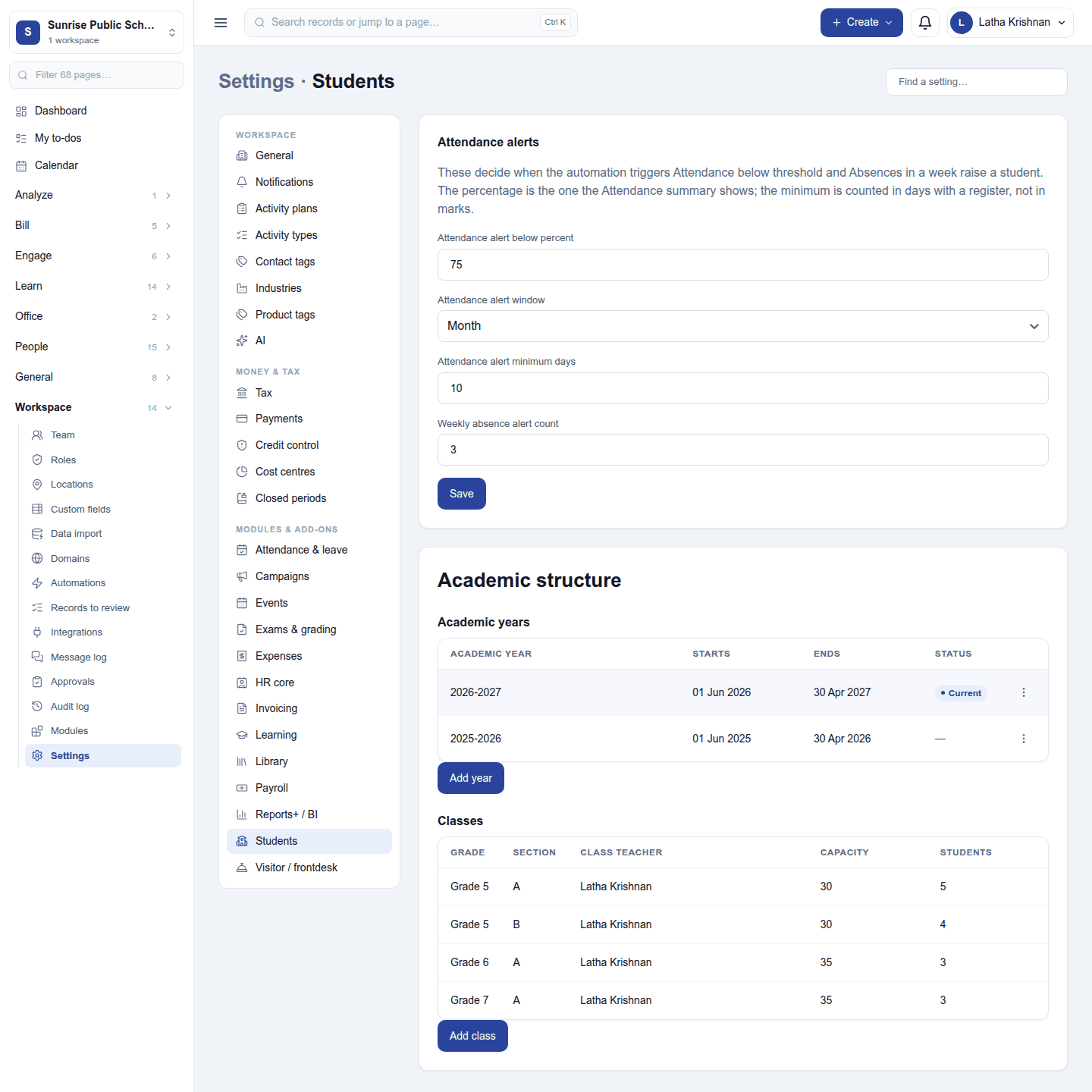
Settings → Students (the module's settings page) holds the Academic structure:
- Academic years, each with start and end dates. One is Current: new enrolments and section assignments use it. Add year, and Set current on a year's ⋮ menu.
- Classes in the current year: grade, section, class teacher (a staff member, optional), capacity, and how many students are in it. Add class.
The same page holds Attendance alerts (below).
Students
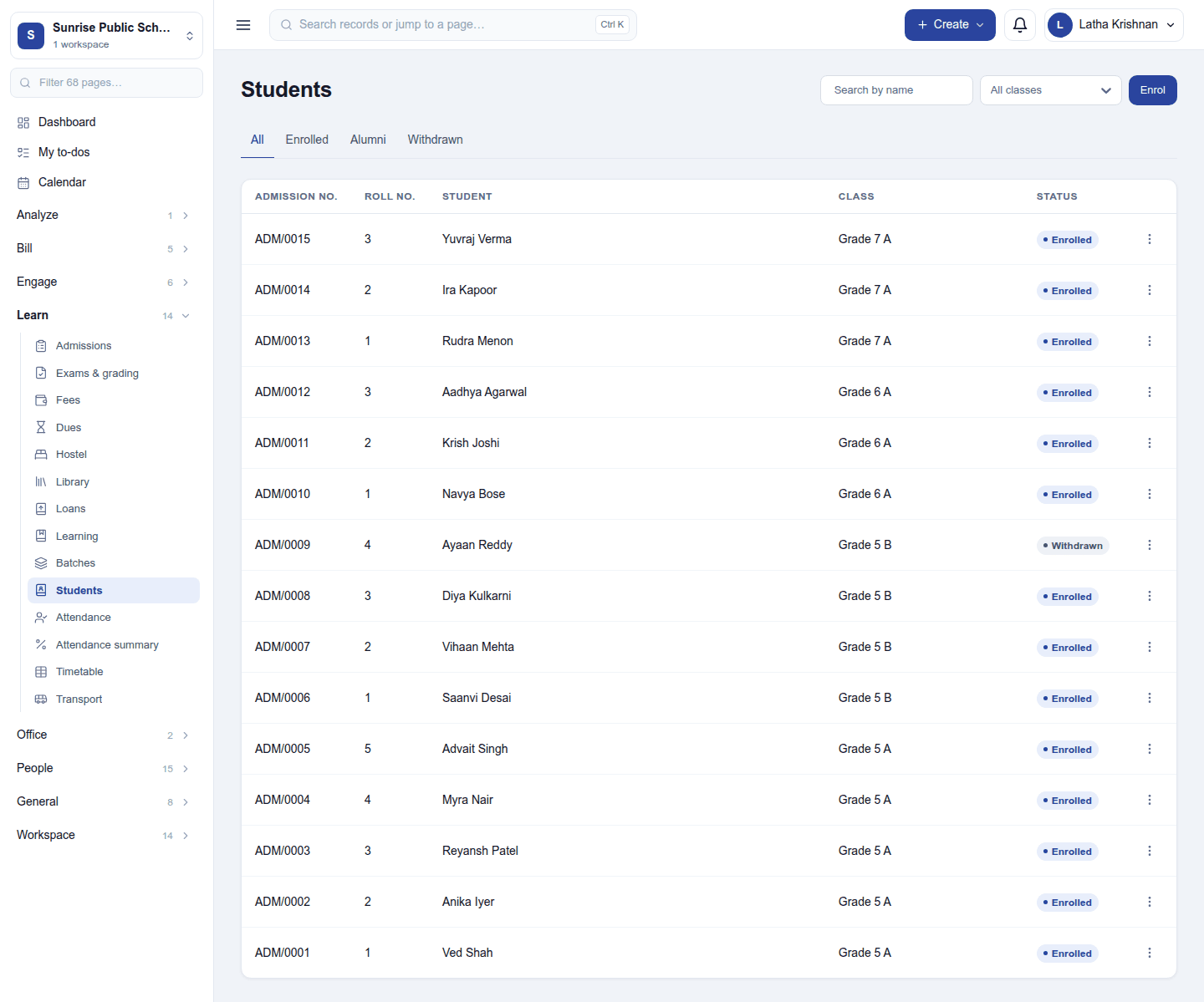
Learn → Students lists every student with admission number, roll number, class and status. The tabs filter All / Enrolled / Alumni / Withdrawn; the header searches by name and filters by class.
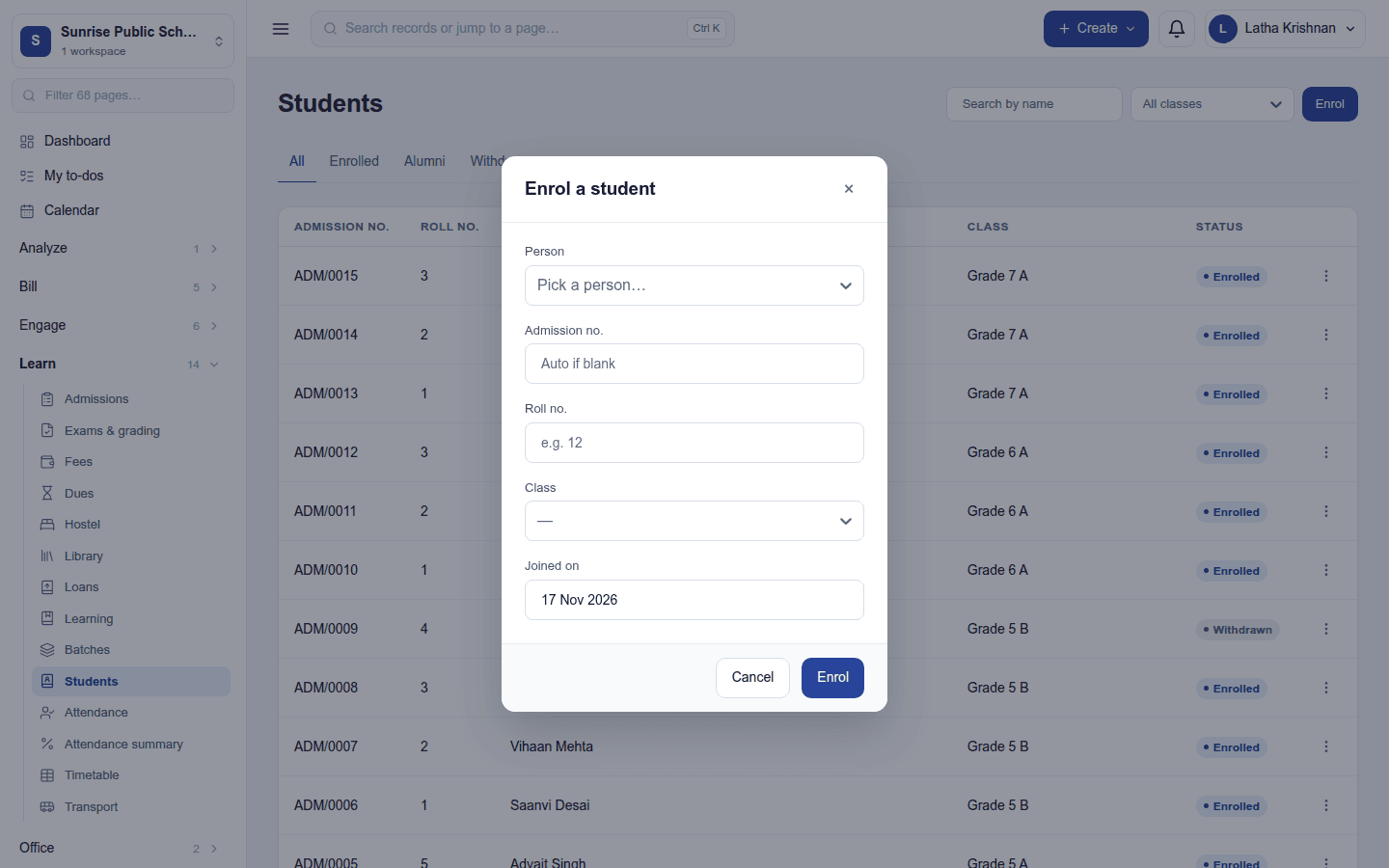
- Enrol opens Enrol a student: pick the person (an existing contact), the admission number (Auto if blank, numbered by the workspace's series), roll number, class and joining date.
- A row's ⋮ menu offers View, Attendance history and Withdraw. Withdrawing asks first and can be reversed by editing the status.
- View opens the student below the list: admission number, email and phone, Assign class (pick a class and press Assign), and Guardians, where parents or guardians are added with their relation and one is marked Primary.
Taking the register
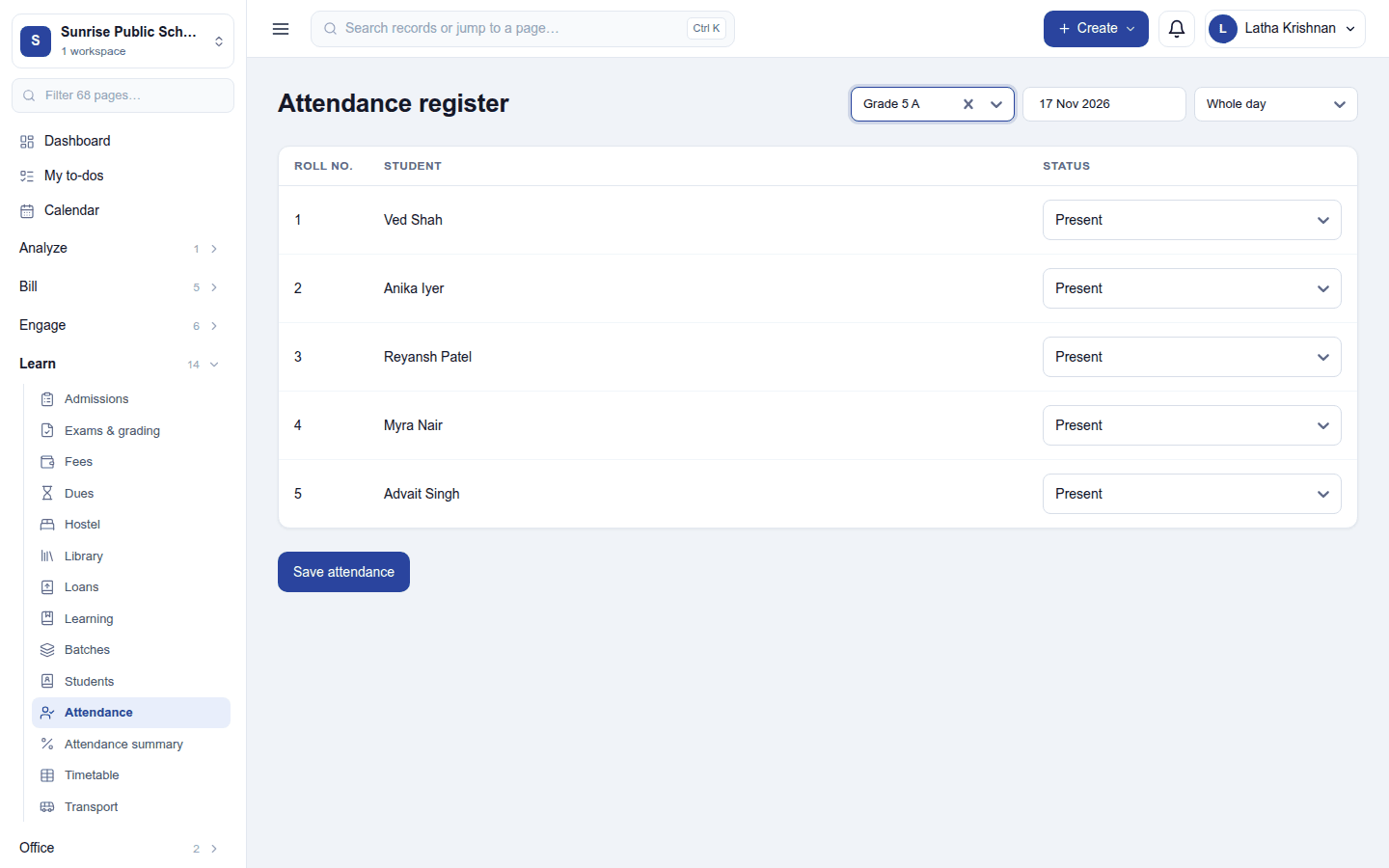
Learn → Attendance: pick a class, a date and the register (Whole day, or a period). The class list loads with each student's current mark; set Present, Absent, Leave or Half day for each and press Save attendance.
- There is one register per class, per day, per period. Saving the same register again corrects it rather than adding a second.
- Whole day is a school's morning register. Periods are for colleges that take one register per lecture, with a Subject recorded on each.
- When the class has a timetable, the period list offers only that day's periods, each with its subject and times, and a period the timetable does not have is refused with a sentence naming the periods it does have. A class with no timetable accepts any period.
The attendance summary
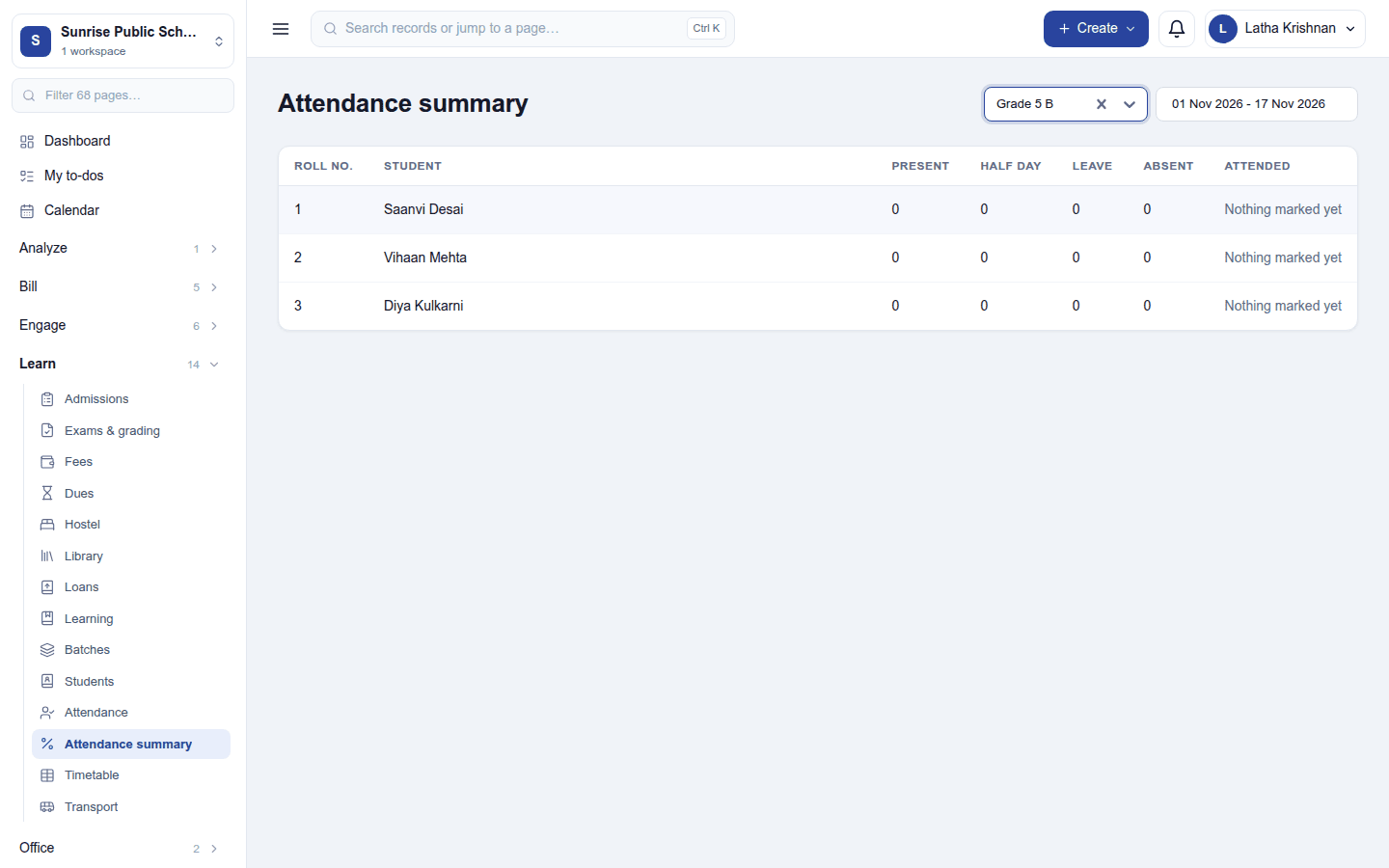
Learn → Attendance summary: pick a class and a date range (this month so far by default) and, optionally, one subject. Each student shows present, half day, leave and absent counts, and what they come to:
- The percentage is (present + half the half days) ÷ everything marked. Leave counts as marked but not present.
- A student with no marks reads Nothing marked yet, never 0%.
- Below 75% shows in the danger colour, with the number of registers it is out of beside it.
One student's history (row menu → Attendance history) shows the same figures per subject, then every register the student was marked in, and Download PDF prints it on the workspace's letterhead (up to a year at a time). A withdrawn or graduated student keeps their record.
Attendance alerts
Two automation triggers chase the students nobody spotted:
| Trigger | Raised when | Default |
|---|---|---|
| Attendance below threshold | A student's attendance over the alert window falls below the threshold, once per student per window, and only after their marks span the minimum number of days | Below 75%, over the calendar month, after 10 days |
| Absences in a week | A student is absent on that many days in the current week (a day with an absence and no presence) | 3 days |
Set them in Settings → Students → Attendance alerts:
| Setting | Default | What it does |
|---|---|---|
| Attendance alert below percent | 75 | The threshold. |
| Attendance alert window | Month | Month or Academic year. |
| Attendance alert minimum days | 10 | Days with a register before anyone is announced. |
| Weekly absence alert count | 3 | Days absent in a week that raise the second trigger. |
An automation built on either can email the guardian, the class teacher or the student.
Permissions
| Permission | Allows |
|---|---|
View students (sis.view) |
See students, classes, the registers, the summary and each history. |
Manage students (sis.manage) |
Enrol, assign classes, keep guardians, withdraw, and take the register. |
Ready-made automations
| Name | Kind | What it does | Starts |
|---|---|---|---|
| Tell me when a student's attendance falls low | Rule | Tells the workspace owner when a student's attendance drops below the threshold. | On |
Turning it off
Students, the registers and the summary leave the menu, and the alerts stop. Records are kept. Admissions can still take applications, but enrolling no longer creates a student. Timetable needs this module, so it must be switched off first.
In the desktop and mobile apps
Not carried.