







































Reports+ / BI
The reports hub: every report the workspace's modules can produce, in one place, run on the workspace's business days, filtered, exported, printed, starred and emailed every morning; with an overview of how the business is doing and an anti-leakage view.
| At a glance | |
|---|---|
| Type | Business module |
| Group | Analyze |
| Needs | Nothing. Each report also needs its own module on and its permission. |
| Included in | Almost every pack |
| Offered to | Every industry pack |
| Permissions | View reports (reports.view), plus each report's own permission |
Switching it on
Workspace → Modules → Reports+ / BI → Enable (needs Manage modules). Reports appears under Analyze, and Settings gains a Reports+ / BI page.
The hub
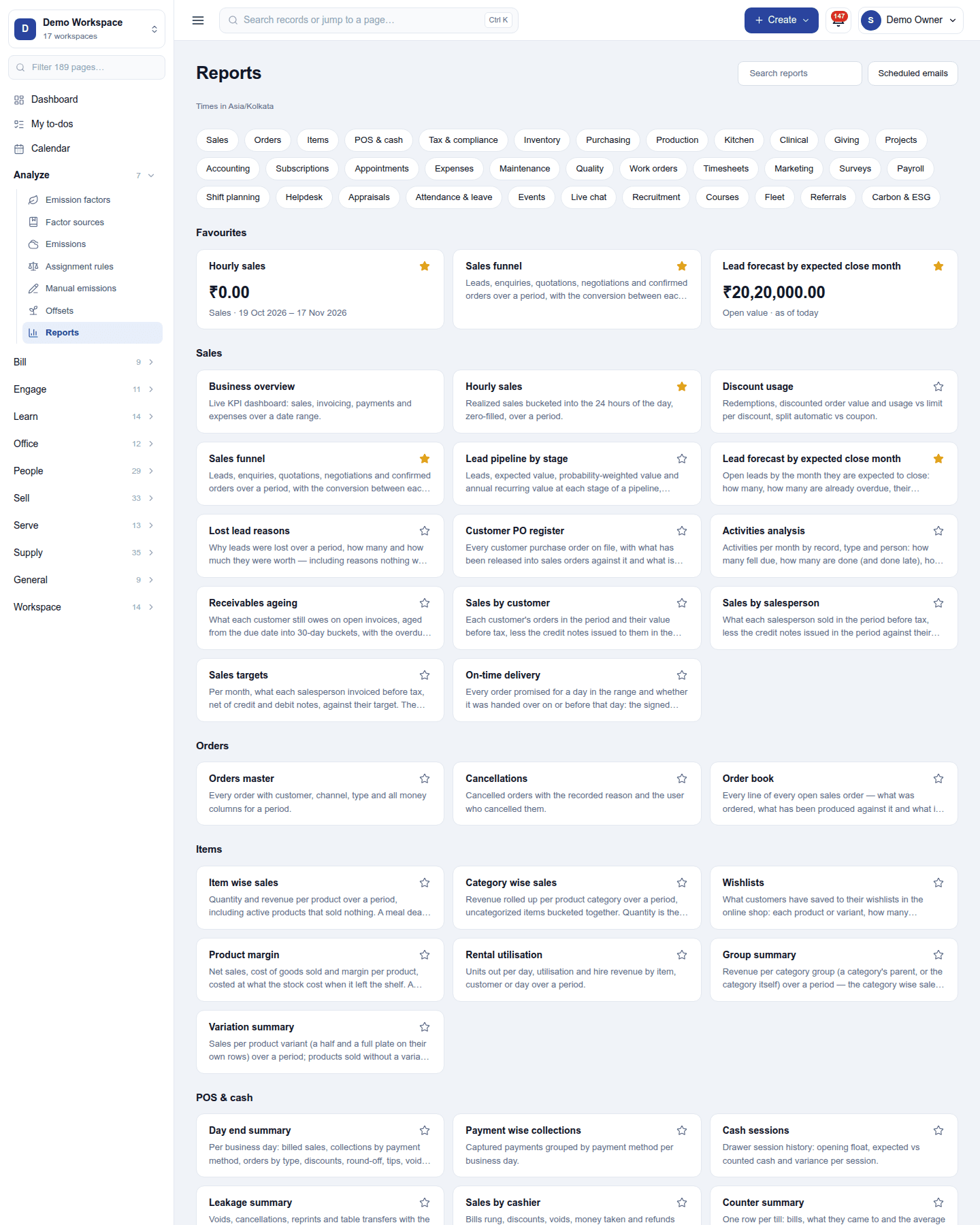
Analyze → Reports shows a card per report, grouped by category (Sales, Orders, Items, POS & cash, Tax & compliance, Inventory, Purchasing, People …), with a rail to jump between them. Which reports appear depends on the modules switched on and on who is looking: a school never sees a kitchen report, and a person sees only the reports their permissions allow.
- Search narrows the cards; ★ puts a report in Favourites (per person), which leads with the report's headline figure.
- Open a report to filter it (dates, people, locations …), sort, total, export to CSV or Excel, print, and schedule it.
Overview is the analytics screen: sales, orders, outstanding receivables and trends over the chosen dates.
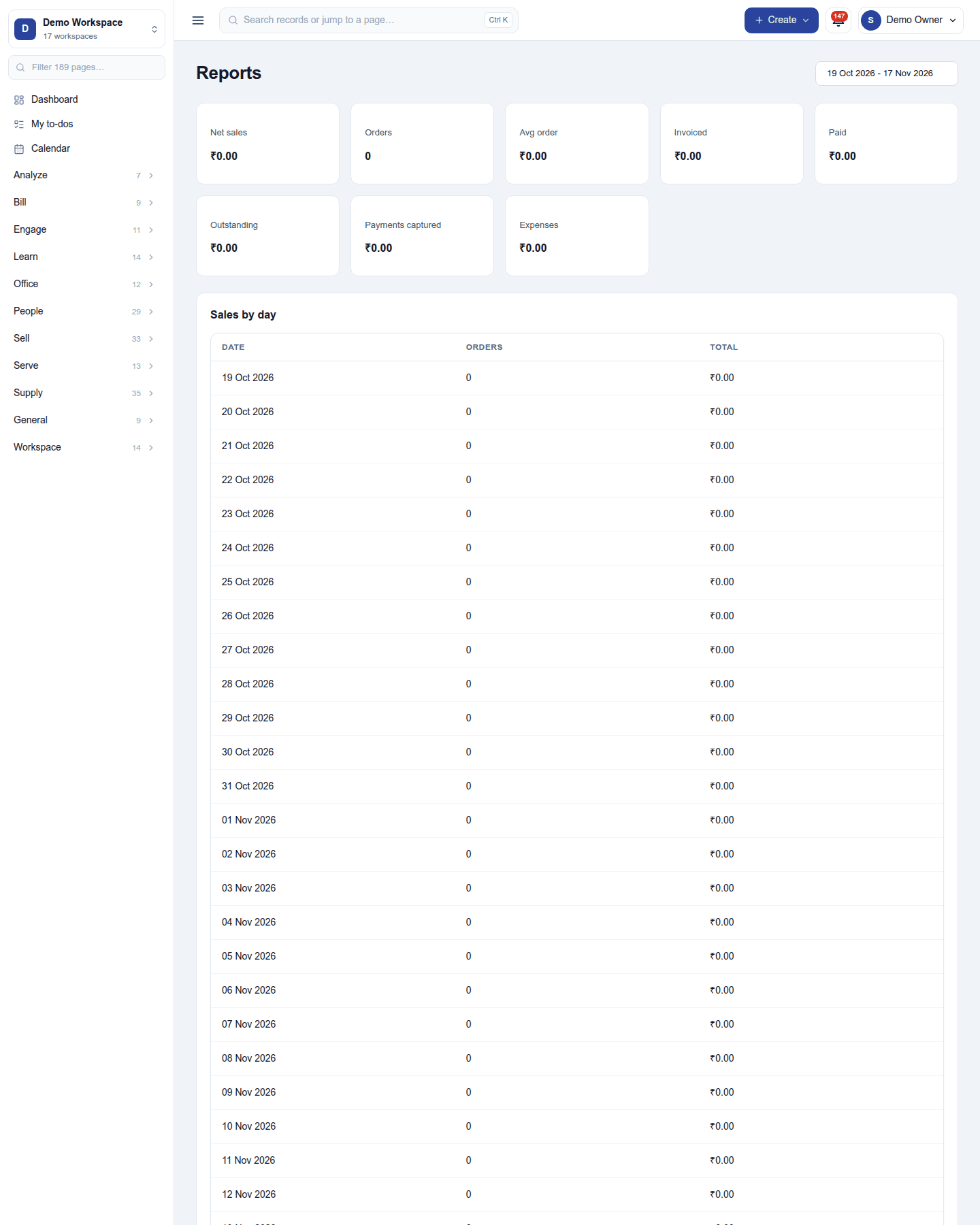
The business day: every number is measured on the workspace's clock, its time zone and the time its day starts (Times in Asia/Kolkata · day starts 06:00), the same as the dashboard.
Scheduled emails and settings
Settings → Reports+ / BI:
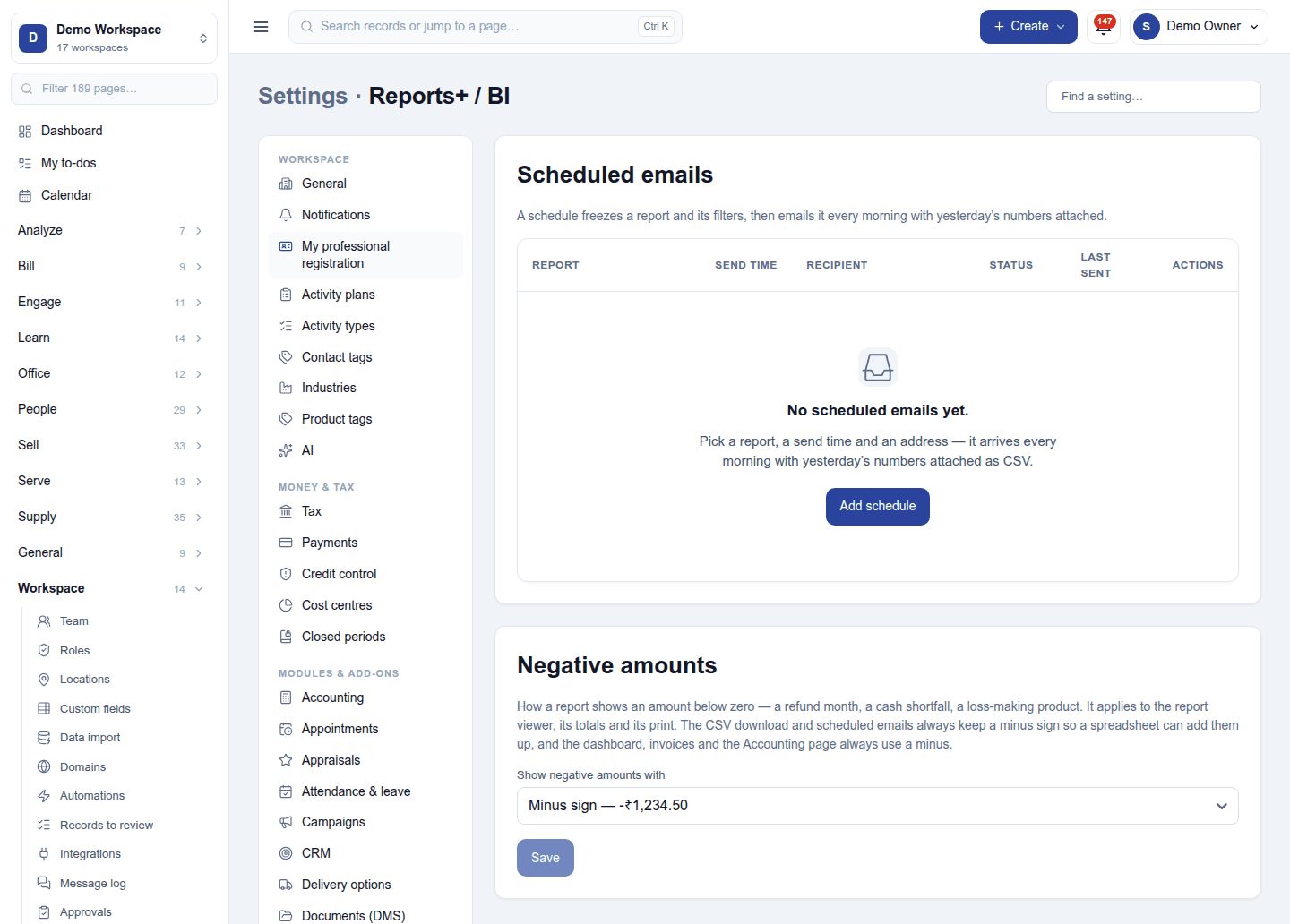
- Scheduled emails: a schedule freezes a report and its filters, then emails it every morning with yesterday's numbers attached as CSV. Add schedule picks the report, the time and the addresses. A schedule pauses if its owner can no longer run the report, and says so.
- Negative amounts: show amounts below zero with a minus sign or in brackets, in the downloads and scheduled emails.
Permissions
| Permission | Allows |
|---|---|
View reports (reports.view) |
Open the hub, the overview and dashboards. |
| (each report's own) | A report shows only to someone with its module's permission (for example Run cash drawers for cash sessions). |
Ready-made automations
None. Scheduled reports are sent on their own.
Turning it off
The hub leaves the menu and scheduled emails stop. Schedules and favourites are kept. Dashboard tiles stay, each governed by its own module.
In the desktop and mobile apps
The restaurant desktop app has its own day-by-day reports for the till, offline included. The hub itself is not in the apps.
Related guides
- Accounting (financial statements), Carbon & ESG
- Module guides index