






































Zomato orders
Takes Zomato orders straight into the kitchen. Every order lands on the Online orders screen with the rider, the delivery OTP and the customer's items, prints its kitchen tickets by itself, and is accepted or refused without leaving the counter.
| At a glance | |
|---|---|
| Type | Add-on module |
| Group | Sell |
| Price | Free |
| Provides | Receive orders from food-delivery platforms |
| Needs | Nothing to switch on. Orders become ordinary orders, and kitchen tickets need Restaurant ops (KOT). |
| Offered to | Restaurant |
| Permission | Manage add-ons (addons.manage) to connect; View orders to see Online orders |
What it does
Zomato orders gives the workspace the Receive orders from food-delivery platforms capability, shared with Swiggy orders. Either one opens Online orders under General in the menu (and on the POS top bar).
Each order arrives as an ordinary order on the online channel, so everything downstream works on its own: kitchen tickets print, stock moves, and the sale counts in every report. With it come the platform's order id, the short number the rider quotes, the rider's name and phone, the delivery OTP, and the platform's own money breakdown (items, discount, taxes, delivery, packing, total, and commission and payout when sent).
Prices are yours. Items are matched to your menu by SKU, then short code, then exact name, and priced from your menu. A dish your menu has never heard of still reaches the kitchen under Zomato's name and price, held against a hidden placeholder until you give the real dish that SKU. The platform's own totals are kept beside yours, never mixed in.
A repeated push changes nothing: one Zomato order can only ever become one order here.
Connecting Zomato
- Go to Workspace → Modules, filter to Add-on modules. Zomato orders is under Sell.
- Open its ⋮ menu and choose Enable.
- Choose an Order push token. Give Zomato the Order push URL shown at the top of the dialog, and ask them to send the token as the
x-api-keyheader. - Press Enable.
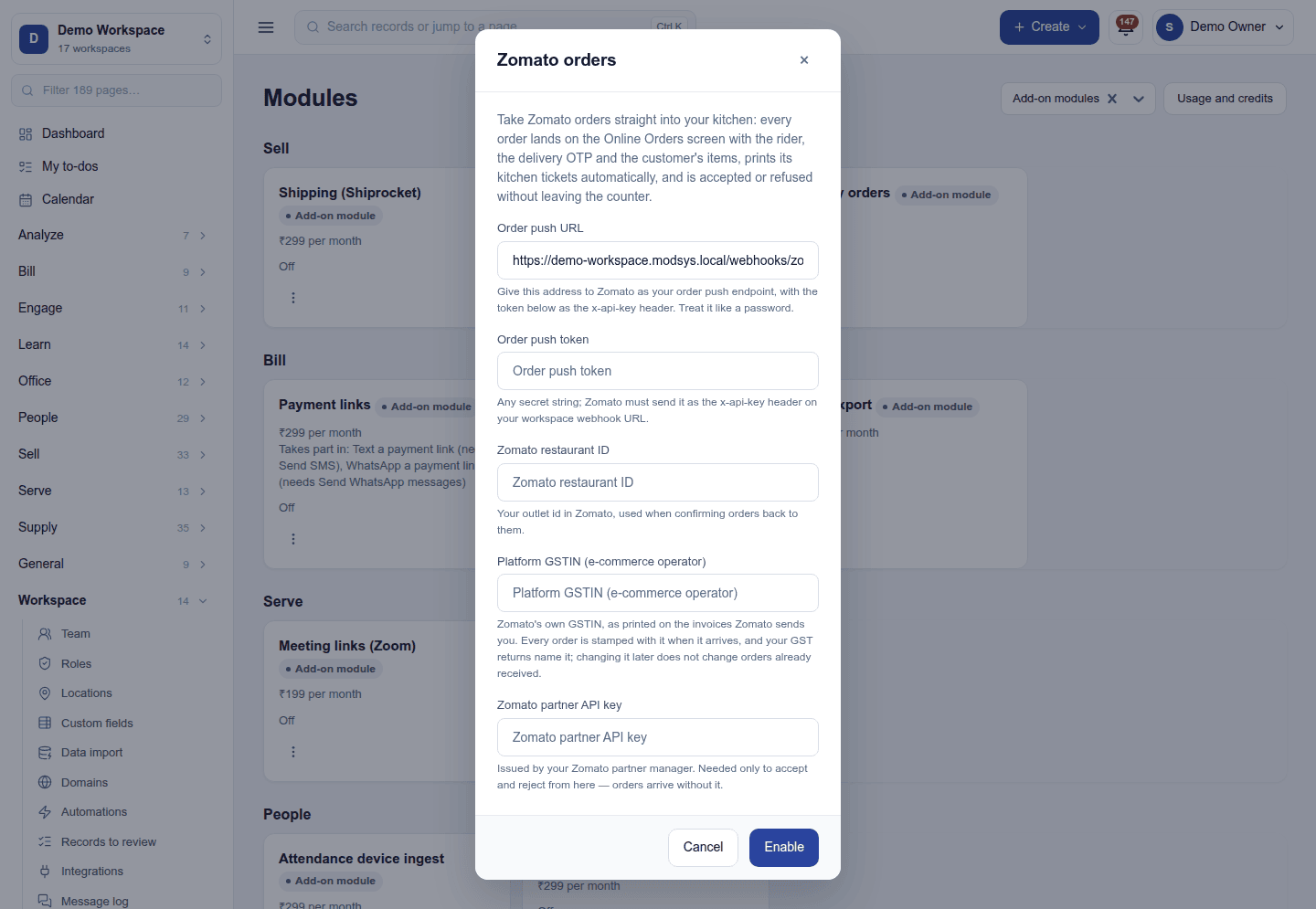
| Field | Required | What to enter |
|---|---|---|
| Order push URL | (shown) | Read-only. Zomato's order push endpoint. Treat it like a password. |
| Order push token | Yes | Any secret string, sent by Zomato as the x-api-key header. A push without it is refused. |
| Zomato restaurant ID | No | Your outlet id at Zomato, used when confirming orders back to them. |
| Platform GSTIN (e-commerce operator) | No | Zomato's own GSTIN, as printed on the invoices Zomato sends you. Checked as a GSTIN when you save. |
| Zomato partner API key | No | From your Zomato partner manager. Needed only to send your accept and refuse decisions back to Zomato. Write-only once saved. |
The platform GSTIN is stamped on every order as it arrives, and the GST returns name your food-delivery invoices by it. Changing it later applies only to orders that arrive afterwards, so a month already filed is never restated.
Working the orders
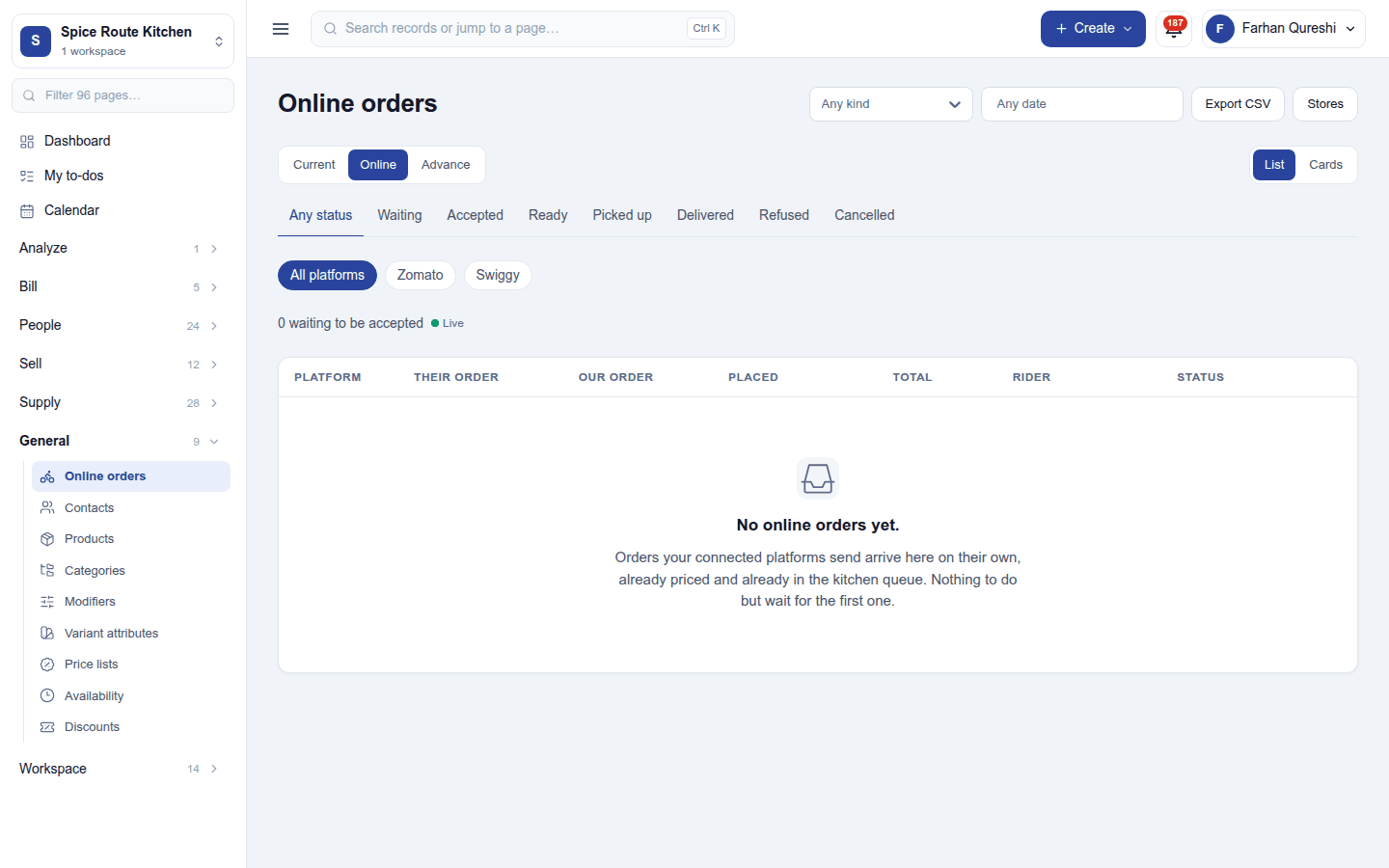
- Accept confirms the order and promises a preparation time (the one typed, or the default). Zomato is told in the background, so the counter never waits.
- Refuse cancels it here as well: its kitchen tickets are voided, the reason is kept, and Zomato is told. An order already picked up or delivered cannot be refused.
- Food ready, then Handed to rider, on an accepted order's ⋮ menu, tell Zomato once each. When the kitchen display marks every ticket of the order Ready, the order is marked ready by itself.
- Stores in the header opens or closes the outlet on Zomato: for 15 or 30 minutes, an hour or two, the rest of the day, or until someone reopens it.
- The tabs show Current, Online and Advance orders, as a list or as cards, filtered by status and platform, with Export CSV.
Settings → Online orders holds Accept orders automatically (off by default; every change is logged), the default preparation time, a decision deadline that flags waiting orders Overdue, and the outlet's ordering hours.
Without the partner API key and restaurant ID, everything works here; the decisions are simply not sent back to Zomato.
Turning it off
Turn off on the ⋮ menu asks first. Pushes are refused from that moment, and the settings are kept for when it goes back on. Online orders stays while Swiggy is still connected.
Ready-made automations
None. Orders go straight to the kitchen display and Online orders; the automation engine has no food-delivery event to react to yet.
In the desktop and mobile apps
The restaurant desktop app carries Online orders as an online-only screen: with no internet it shows one notice instead of the page, because the orders come from the platform. The Captain phone app does not carry it.