







































Quotations
Writes priced offers for customers, sends them as PDFs or an online page the customer can accept and sign, keeps every revision, and turns an accepted quotation into a sales order. For project work it adds bills of quantities, a rate master and the customer's purchase orders.
| At a glance | |
|---|---|
| Type | Business module |
| Group | Sell |
| Needs | CRM |
| Included in | Manufacturing, Trusts & non-profits, Diagnostic lab / pathology, Services & appointments, Wholesale & building materials, Exporter, Bakery & sweet shop, Caterer & tiffin service and most service packs |
| Offered to | Every industry pack |
| Permissions | View quotations (quotations.view), Manage quotations (quotations.manage) |
Switching it on
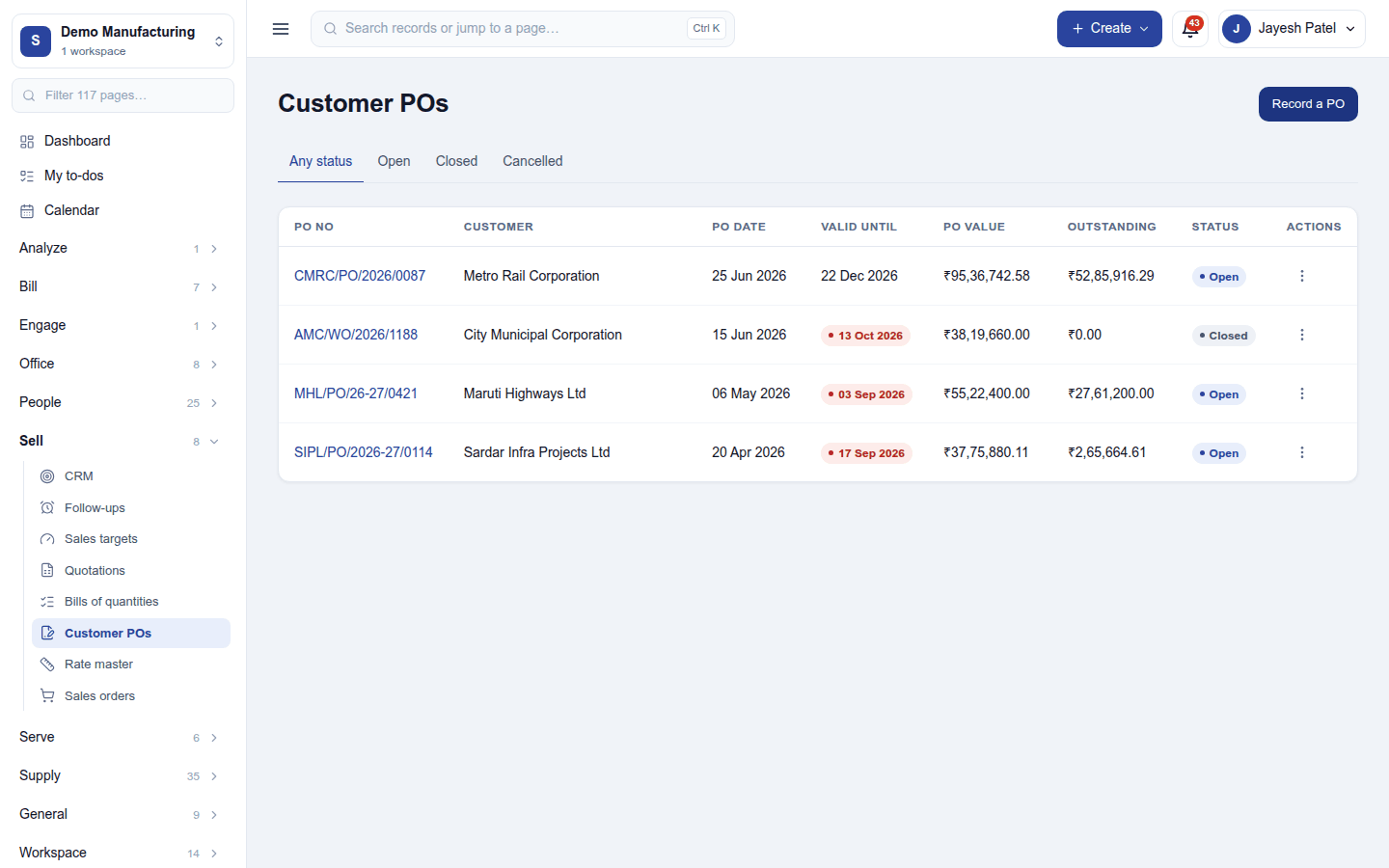
Workspace → Modules → Quotations → Enable (needs Manage modules). CRM must be on first. Quotations, Bills of quantities, Customer POs and Rate master appear under Sell, beside CRM.
Quotations
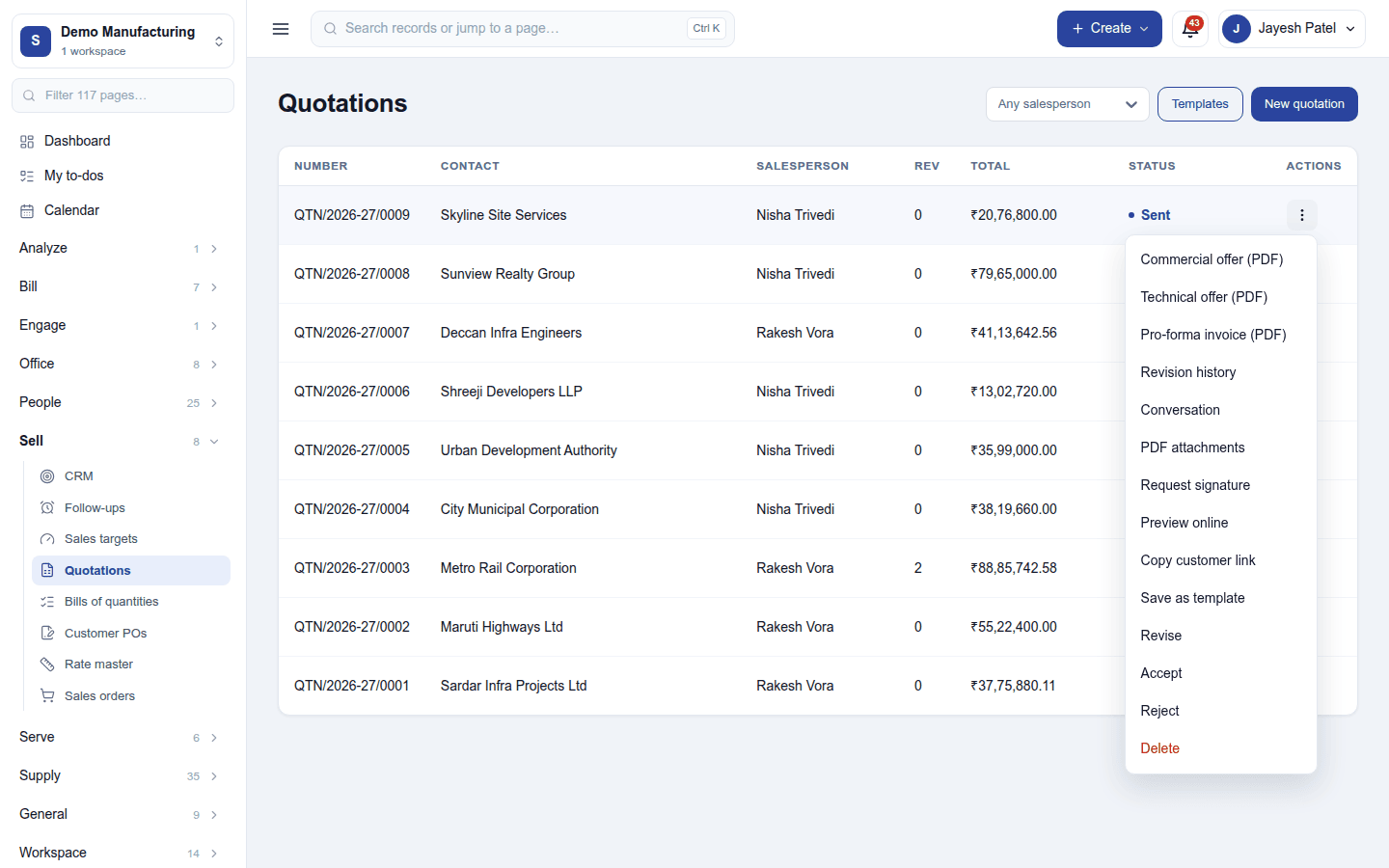
Sell → Quotations lists every quotation (for example QTN/2026-27/0009) with its customer, salesperson, revision number, total and status: Draft, Pending approval, Sent, Accepted, Rejected or Expired. Filter by salesperson; Templates holds the saved quotation templates.
New quotation opens the dialog:
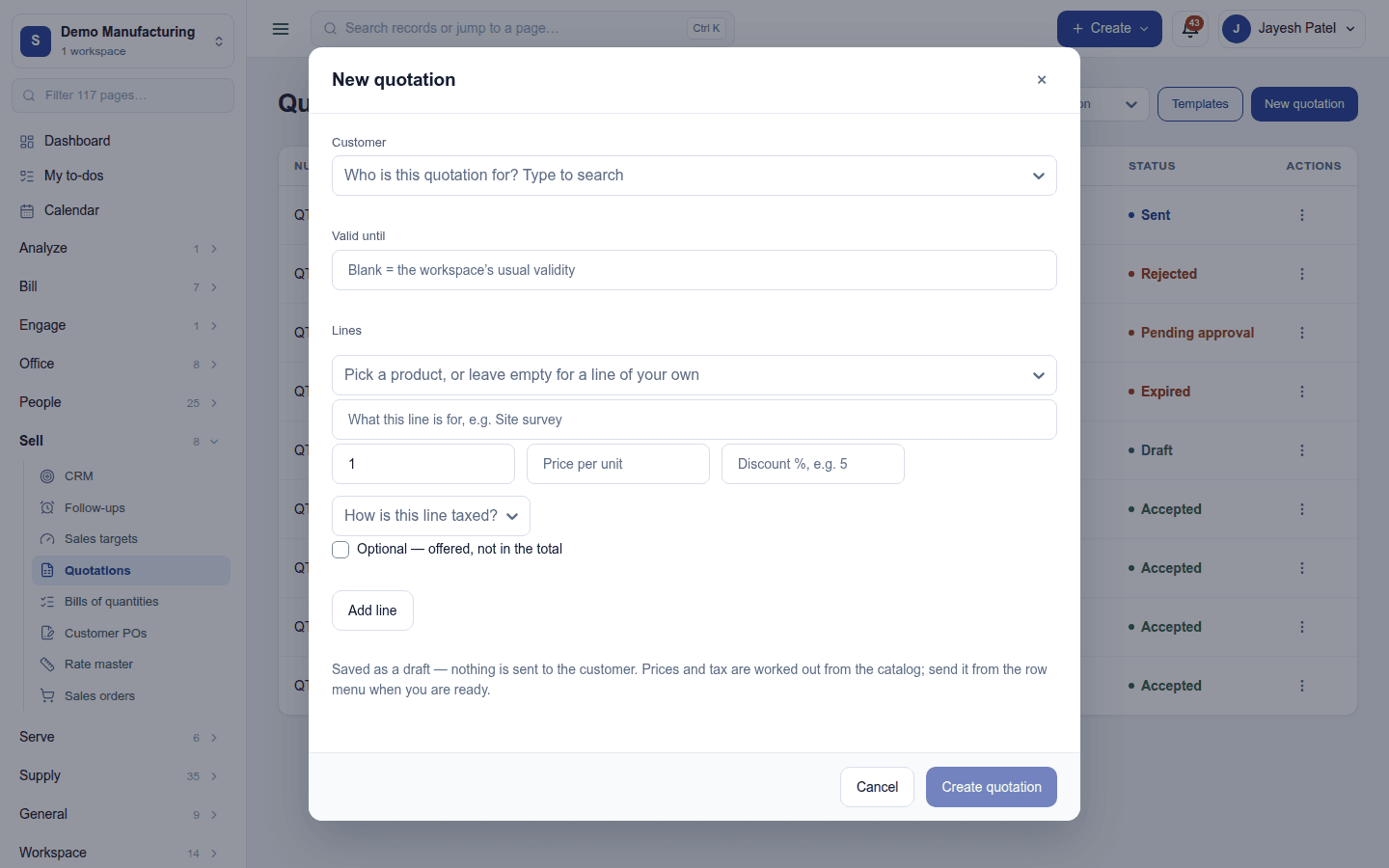
- Customer and Valid until (blank uses the workspace's usual validity).
- Lines: a product from the catalogue (or a line of your own), what it is for, quantity, price per unit, discount and how it is taxed. A line can be Optional: offered to the customer, but not in the total until they choose it. Products with variants can be added from a grid.
Create quotation saves it as a draft; nothing goes to the customer. Prices and tax are worked out from the catalogue.
What you can do with a quotation
The row's ⋮ menu:
| Action | What it does |
|---|---|
| Send (on a draft) | Emails it to the customer; it becomes Sent. Above the approval limit it goes for approval first (Pending approval). |
| Commercial offer (PDF), Technical offer (PDF) | The two printed offers: prices, and the technical scope. |
| Pro-forma invoice (PDF) | A pro-forma for an advance. |
| Revision history, Revise | Every revision is kept; Revise starts the next one (the Rev column counts them). |
| Conversation | The quotation's emails and notes. |
| PDF attachments | Documents that travel with the PDF (drawings, data sheets). |
| Request signature | Sends it for an eSign signature (with eSign). |
| Preview online, Copy customer link | The online page the customer opens to accept and sign or decline, with no account. |
| Save as template | Keeps its lines as a template for next time. |
| Accept, Reject | Records the customer's answer by hand. |
| Delete | Removes a quotation (asks first). |
Accepting (in the app, or by the customer online) turns the quotation into a sales order, which then follows the Sales orders flow. An accepted quotation can also start a subscription (with Subscriptions). If the lead behind it has a salesperson with a commission rule, they earn their commission (Commissions).
Bills of quantities, rates and customer POs
For project and contract work:
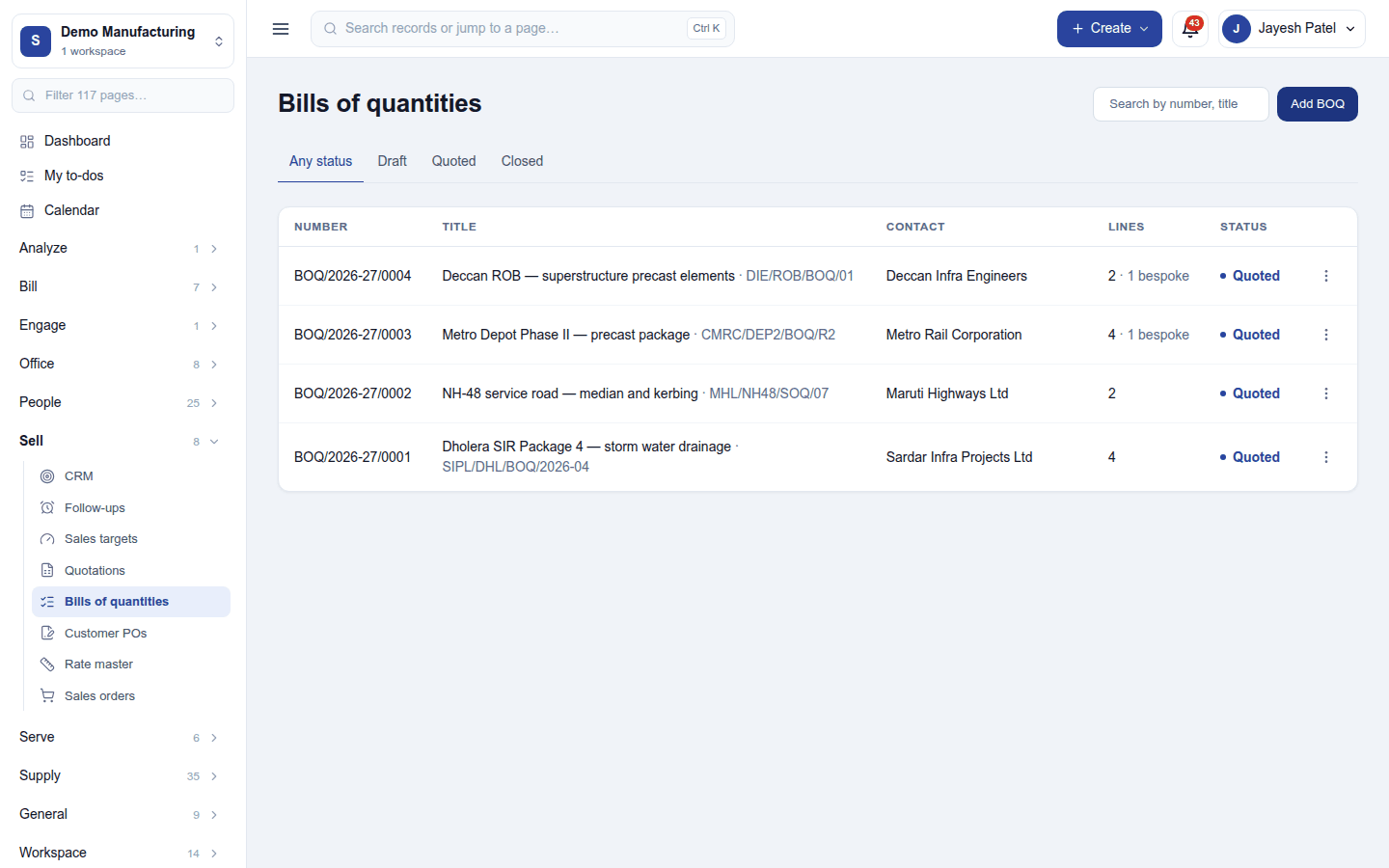
- Bills of quantities (
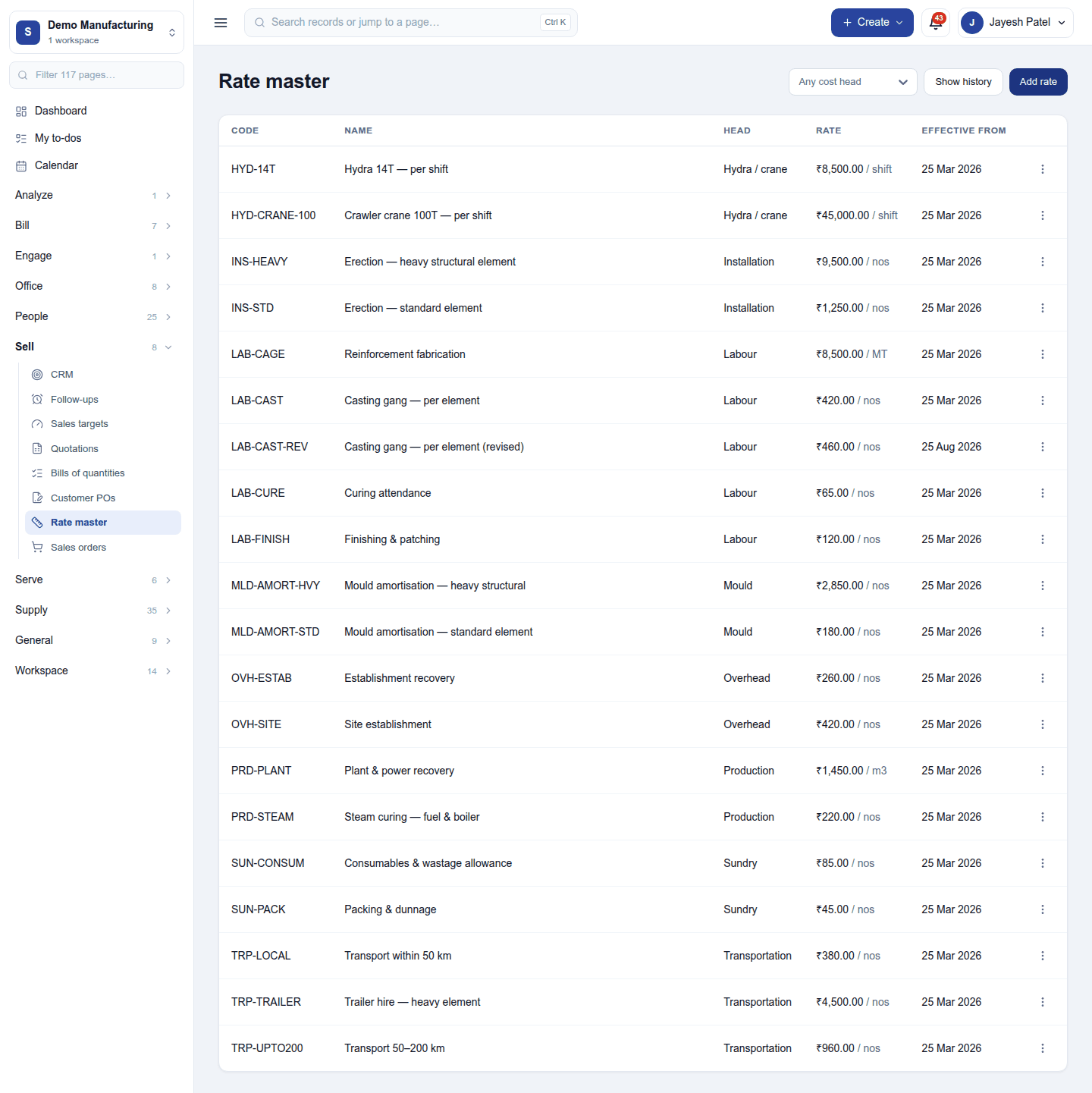
BOQ/…): the customer's list of items and quantities, costed line by line from the Rate master, with bespoke lines for one-off items. A BOQ is Draft, Quoted (a quotation has been raised from it) or Closed. - Rate master: the workspace's standard rates for estimating.
- Customer POs: the purchase orders customers send back, matched to the order they place, so where is my order? can be answered line by line.
Settings
Settings → Quotations:
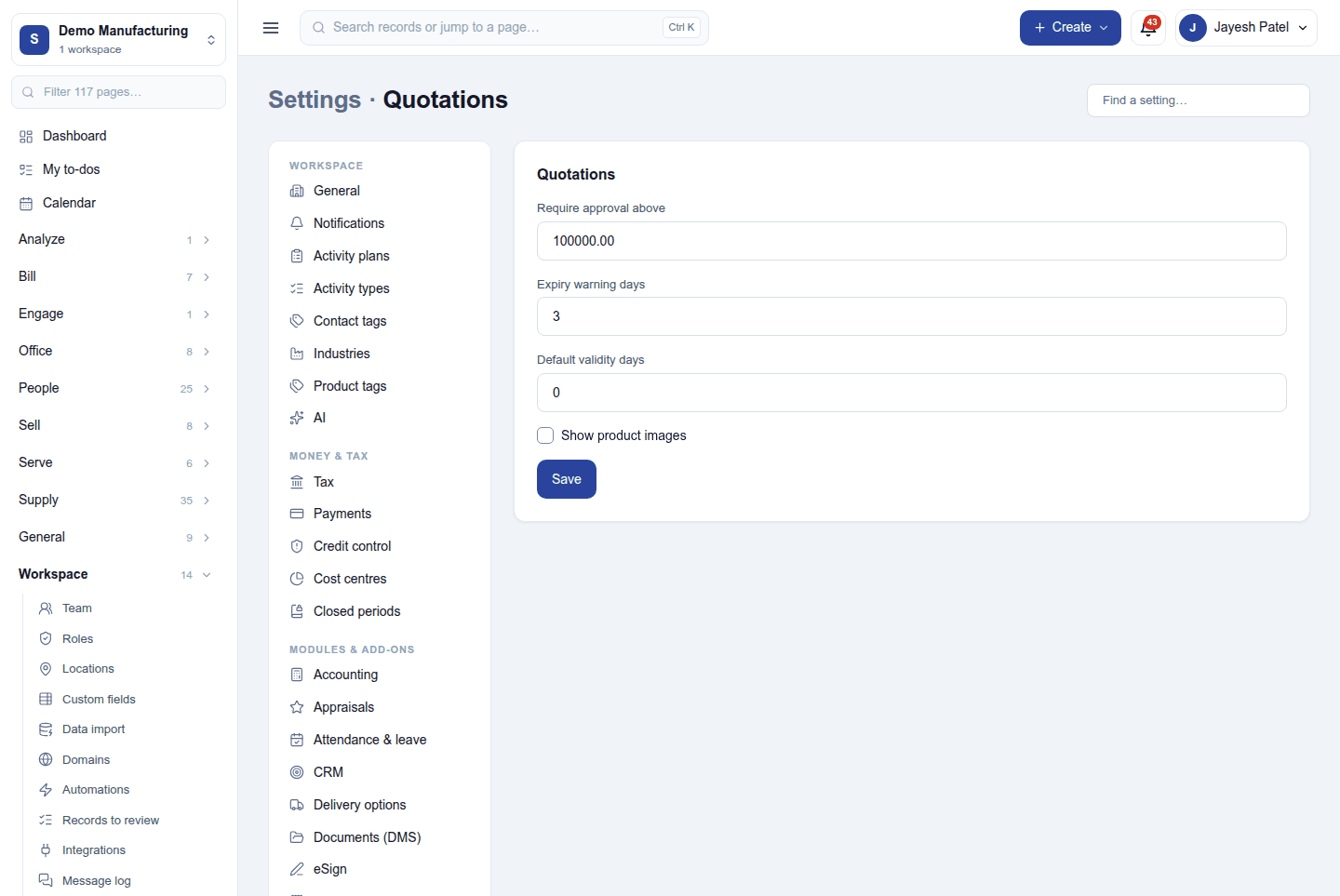
| Setting | Default | What it does |
|---|---|---|
| Require approval above | 0 (never) | A quotation above this total goes for approval before it is sent. |
| Expiry warning days | 3 | How many days before Valid until the salesperson is warned. |
| Default validity days | 0 (none) | How long a new quotation stands when no date is given (up to 3,650). |
| Show product images | Off | Prints each product line's picture on the quotation PDFs. |
Permissions
| Permission | Allows |
|---|---|
View quotations (quotations.view) |
See quotations, their versions, BOQs, rates and customer POs. |
Manage quotations (quotations.manage) |
Write, send, revise, accept, reject and convert quotations; keep BOQs and rates. |
Ready-made automations
| Name | Kind | What it does | Starts |
|---|---|---|---|
| Follow up on a quotation with no answer | Rule | Three days after a quotation is sent and still unanswered, tells its salesperson to follow up. | On |
| Tell the salesperson when a quotation is accepted | Rule | Tells the salesperson the moment their quotation is accepted. | On |
Turning it off
The four screens leave the menu and the online quotation links stop opening. Quotations and BOQs are kept. CRM can be switched off only after Quotations.
In the desktop and mobile apps
Not carried.