







































Restaurant ops (KOT)
Runs the kitchen side of a restaurant: every order raises a kitchen order ticket (KOT), shown live on the kitchen display and printed at the right station, with courses fired in order, cook notes, and table reservations.
| At a glance | |
|---|---|
| Type | Business module |
| Group | Sell |
| Needs | POS |
| Included in | Restaurant, Hotel / guest house, Bakery & sweet shop, Caterer & tiffin service, Association & club |
| Offered to | Restaurant, Bakery & sweet shop, Caterer & tiffin service, Hotel / guest house, Association & club |
| Permissions | View kitchen orders (kot.view), Manage restaurant (kot.manage) |
Switching it on
Workspace → Modules → Restaurant ops (KOT) → Enable (needs Manage modules). POS must be on first. Kitchen (KDS), Kitchen tickets, Print queue and Reservations appear under Sell, and Settings gains its Restaurant page.
Kitchen tickets
Every order placed (at the till, from the floor, by a waiter's phone, from a delivery platform or the shop) raises a kitchen ticket with the items to prepare. Tickets are numbered per day (#1, #2 …, restarting each morning) and routed to the station that cooks each item.
The kitchen display (KDS)
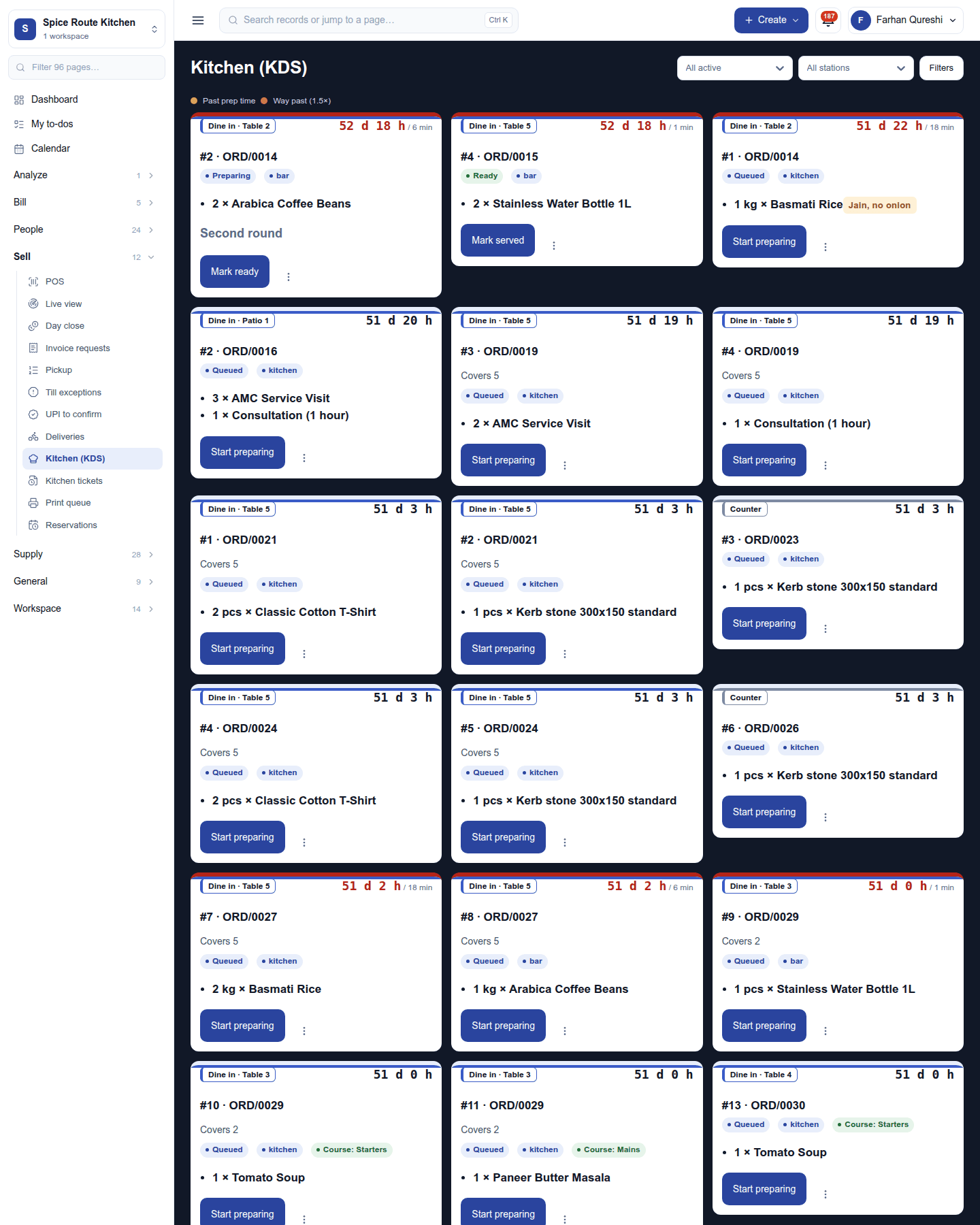
Sell → Kitchen (KDS) is the kitchen's screen: a board of ticket cards, oldest first, each with the ticket and order number, the table, the items with their cook notes, and the minutes since it arrived. It updates live; a new order appears within seconds.
- Each card has one big action: Start preparing → Mark ready → Mark served. Served tickets leave the board.
- Courses are fired in order: a later course waits until the waiter fires it.
- An urgent ticket stands out; a voided or cancelled dish shows struck through.
- When every ticket of an online order is ready, the platform is told the food is ready (Zomato, Swiggy).
Kitchen tickets, print queue and reservations
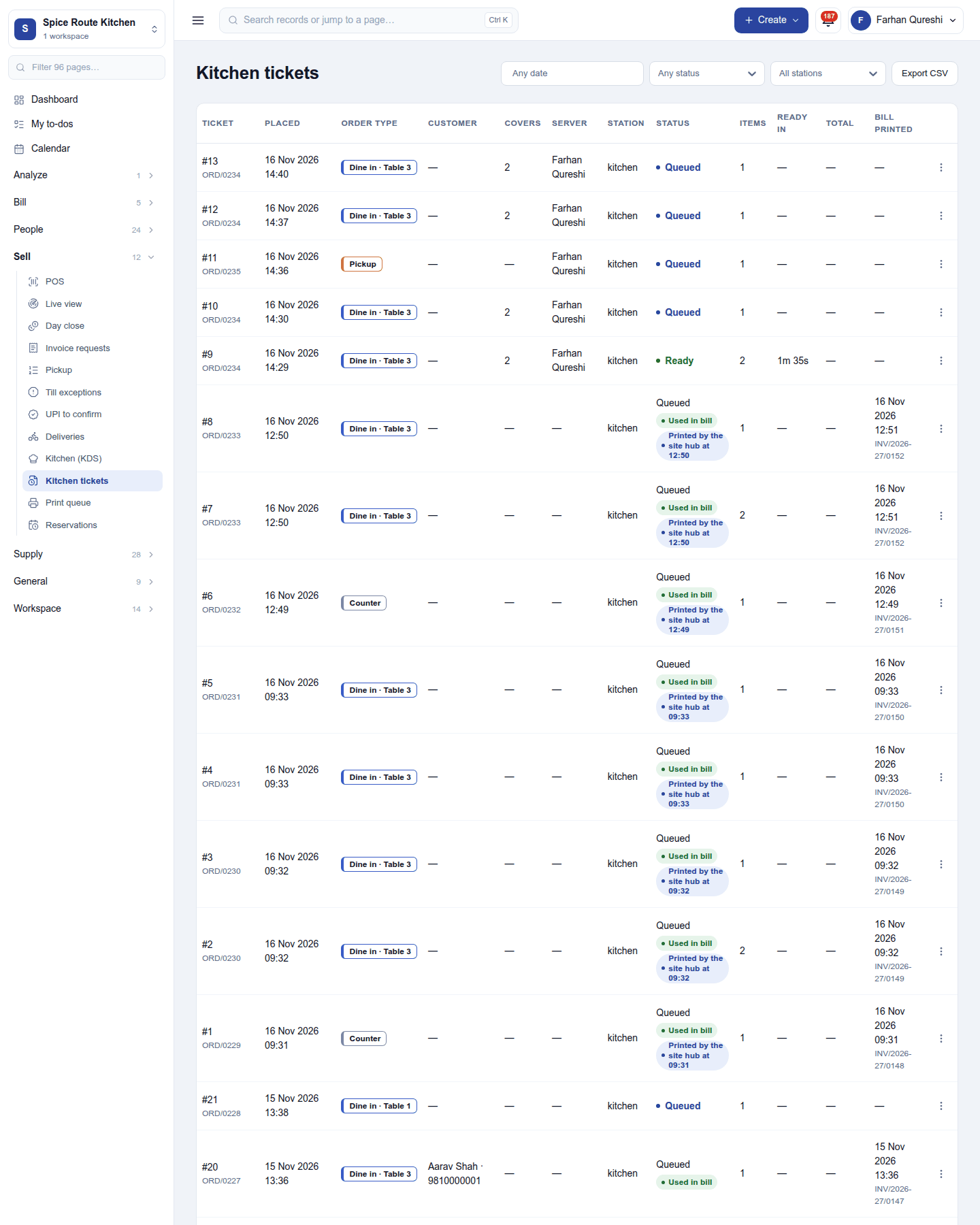
- Kitchen tickets: every ticket with its time, order type, table, customer, server, status and items, filtered by date and state, for looking back over a service.
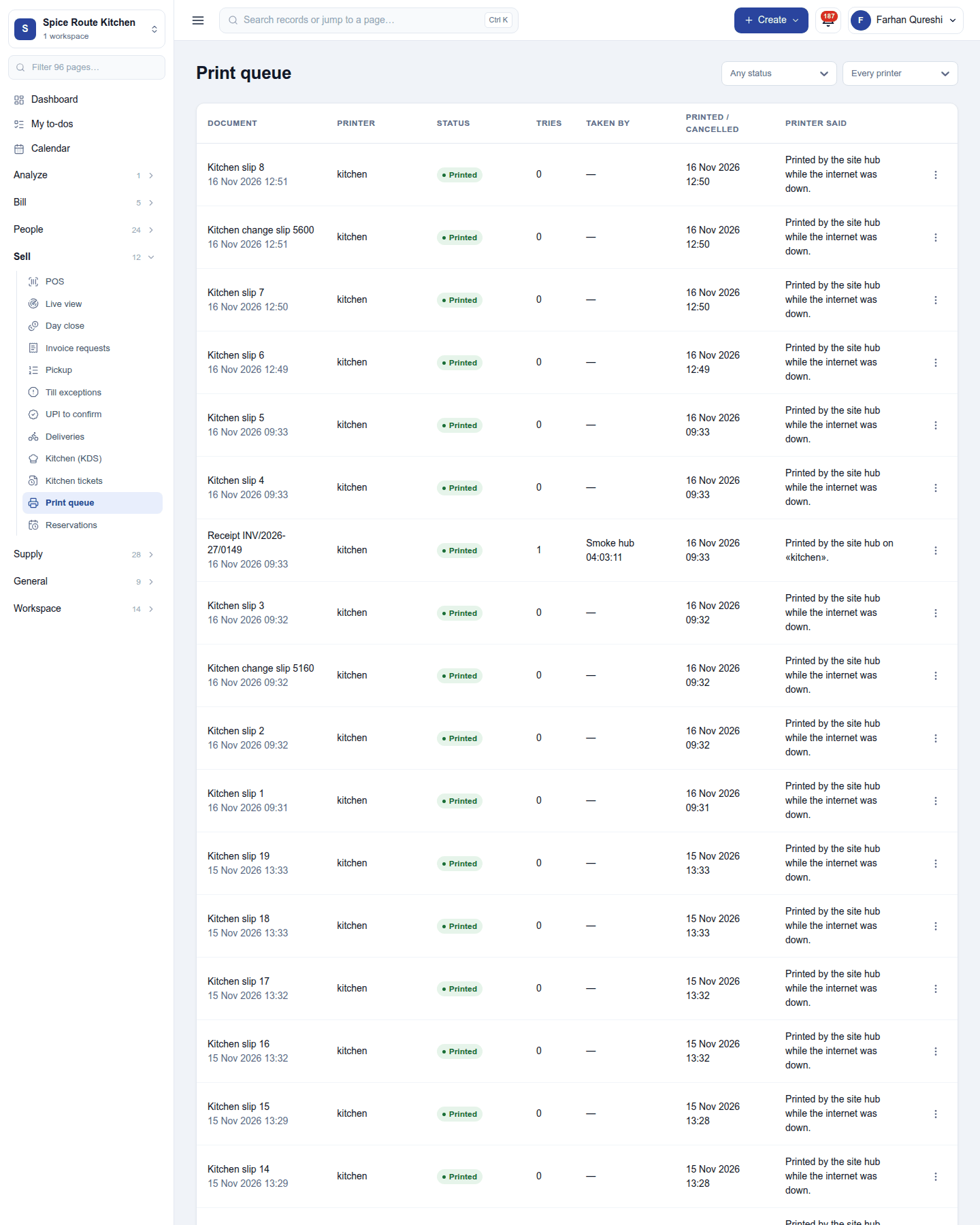
- Print queue: the kitchen slips sent to each station's printer, with whether each printed, and a reprint.
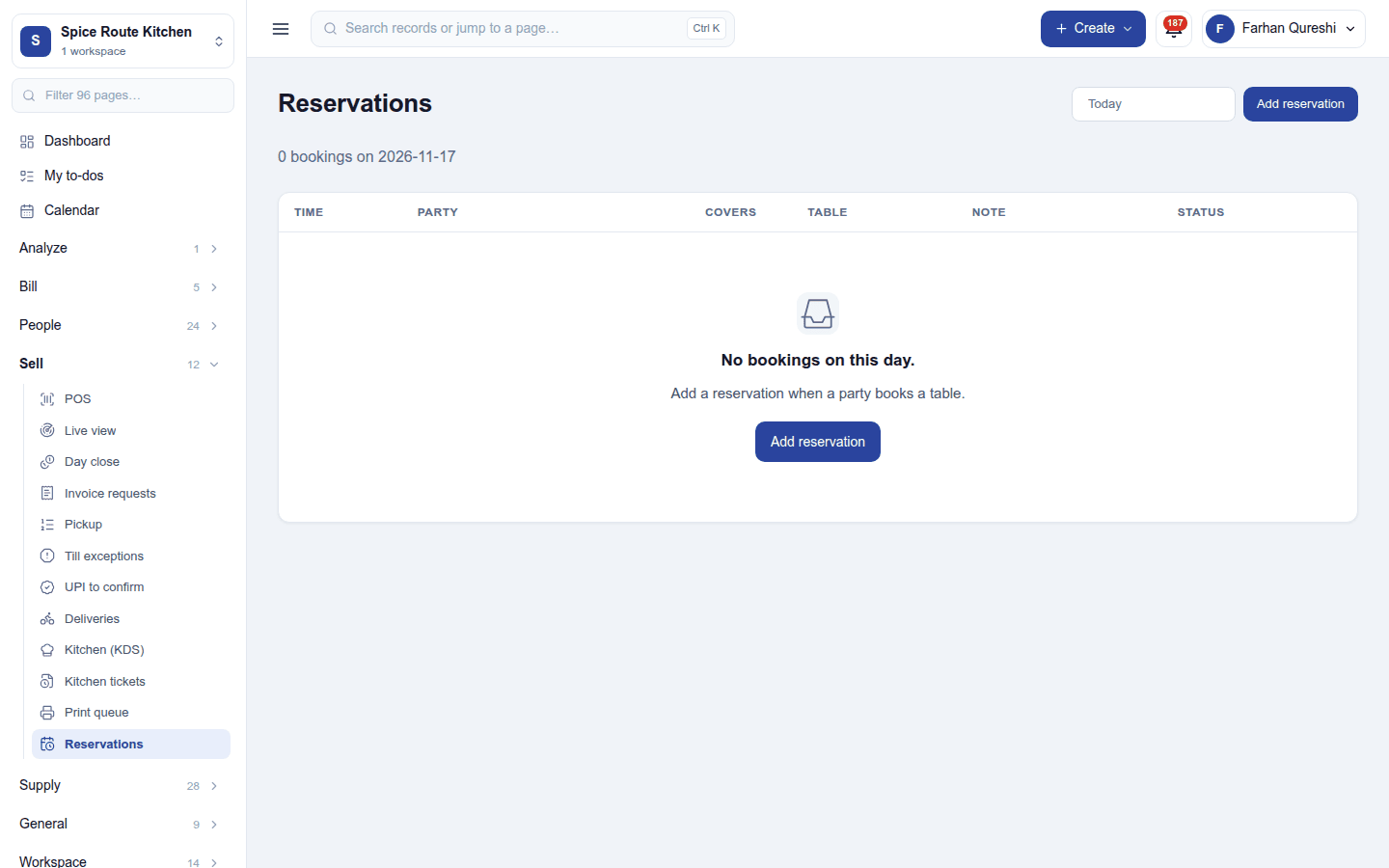
- Reservations (needs Use the till): table bookings for a day, with the time, party, covers, table, note and status. Add reservation books a table.
Settings
Settings → Restaurant ops (KOT) → Restaurant holds the restaurant's set-up:
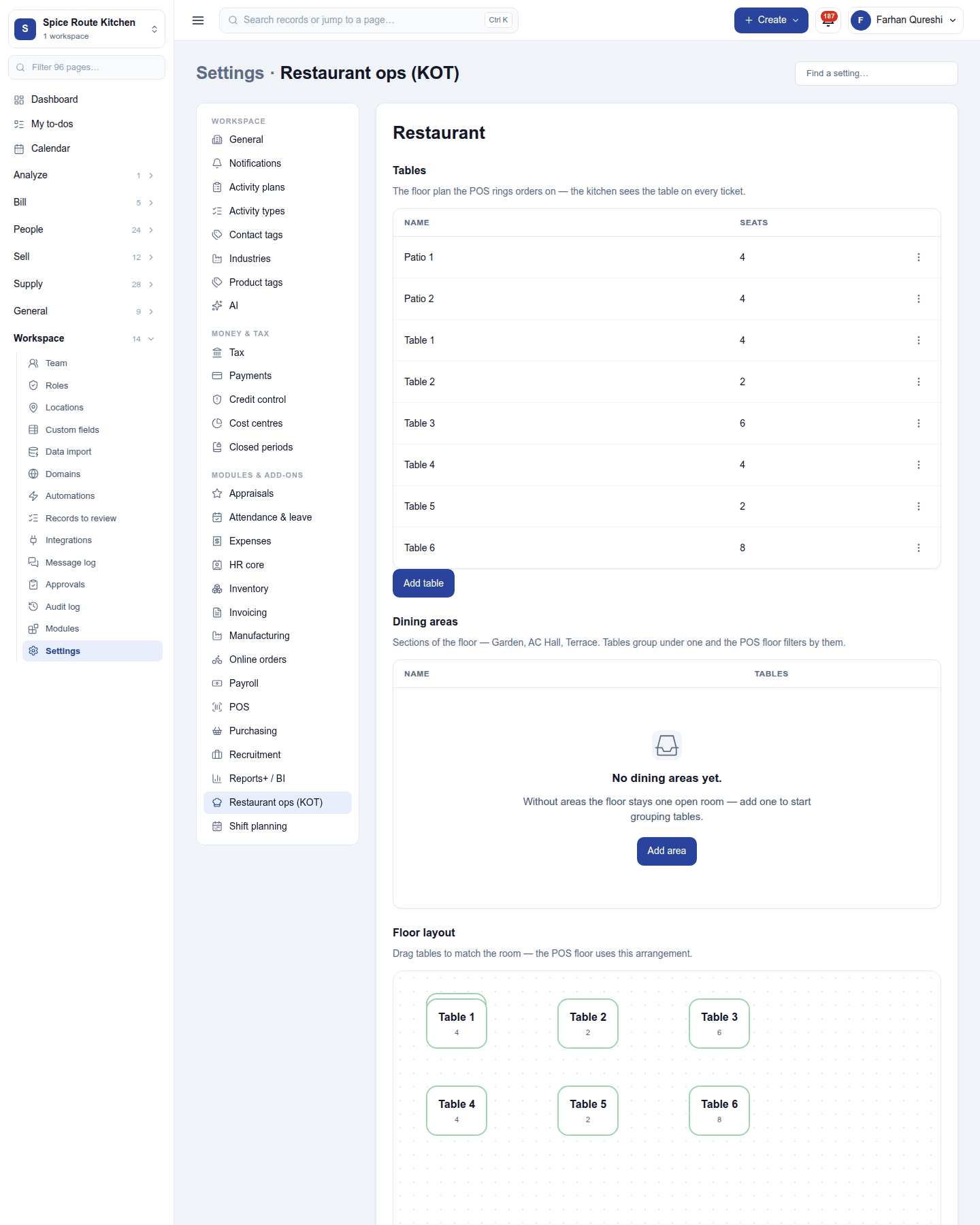
- Tables and dining areas (Ground floor, Patio), and the floor layout the till's Floor shows.
- The menu's kitchen details: each dish's station, preparation time, veg or non-veg and spice marks, and its course.
- Auto-print stations: which printer each station's slips go to.
- Branches (a workspace with locations): each dining area's Branch, and Orders with no branch print at for delivery platform and shop orders. A kitchen slip then prints only at its own branch's site hub.
- Quick kitchen notes: ready-made cook notes (less spicy, no onions) the till offers with one tap.
Permissions
| Permission | Allows |
|---|---|
View kitchen orders (kot.view) |
See the kitchen display, tickets, print queue, menu and floor. |
Manage restaurant (kot.manage) |
Set up the menu, courses, floor areas, tables and stations. |
Ready-made automations
| Name | Kind | What it does | Starts |
|---|---|---|---|
| Tell me when a kitchen ticket waits 20 minutes | Rule | Tells the workspace owner when a kitchen ticket is still not ready 20 minutes after it was sent. | On |
Turning it off
The kitchen screens leave the menu and orders stop raising tickets. The till keeps selling. Tickets already raised are kept.
In the desktop and mobile apps
- Restaurant desktop app: carries the kitchen display and prints kitchen slips straight to the printers over the local network (ESC/POS), offline included. The site hub routes every device's tickets to the kitchen with the cloud down.
- Several kitchen printers: each printer on the site hub prints the stations you choose. One printer can print several (Chinese and Mexican at one counter), each station prints on one printer only, and one printer can take every station without its own. A printer at the host table or the pass can keep a copy of every kitchen slip. Online orders print the same way, and bills print only on the printer each till chooses.
- Captain: a waiter's phone sends rounds to the kitchen, fires courses, and rings when food is ready.
Related guides
- POS, Online orders, Desktop site hub, Captain app
- Module guides index