







































Email (your SMTP)
Sends the workspace's email from its own address, through any SMTP server it already has: its hosting provider, Google Workspace, Zoho. It is free, because the workspace's own server does the sending.
| At a glance | |
|---|---|
| Type | Add-on module |
| Group | Engage |
| Price | Free |
| Provides | Send email from your own address |
| Needs | Nothing (an SMTP account) |
| Offered to | Every industry pack |
| Permission | Manage add-ons (addons.manage) |
What it does
Four add-on modules provide the Send email from your own address capability: Email (your SMTP), Email (Brevo), Email (Gmail / Google Workspace) and Email (Microsoft 365 / Outlook). Whichever is serving decides where the workspace's email comes from.
With an email sender on, mail the workspace sends to its customers goes out from the workspace's own address: emails written on a record, invoices sent by email, helpdesk replies, recruitment letters, eSign requests, course invitations and share cards, as well as all bulk mail.
Without one, everyday one-to-one mail still goes, from the platform's address under the name "<workspace> via <platform>". Bulk and marketing mail does not: campaigns, marketing journeys, survey invitations, messages to event attendees and learners, event email reminders and abandoned-cart emails are refused with Connect your e-mail sender to send these.
Switching it on
- Go to Workspace → Modules, filter to Add-on modules. Email (your SMTP) is under Engage.
- Open its ⋮ menu and choose Enable.
- Fill in the dialog and press Enable.
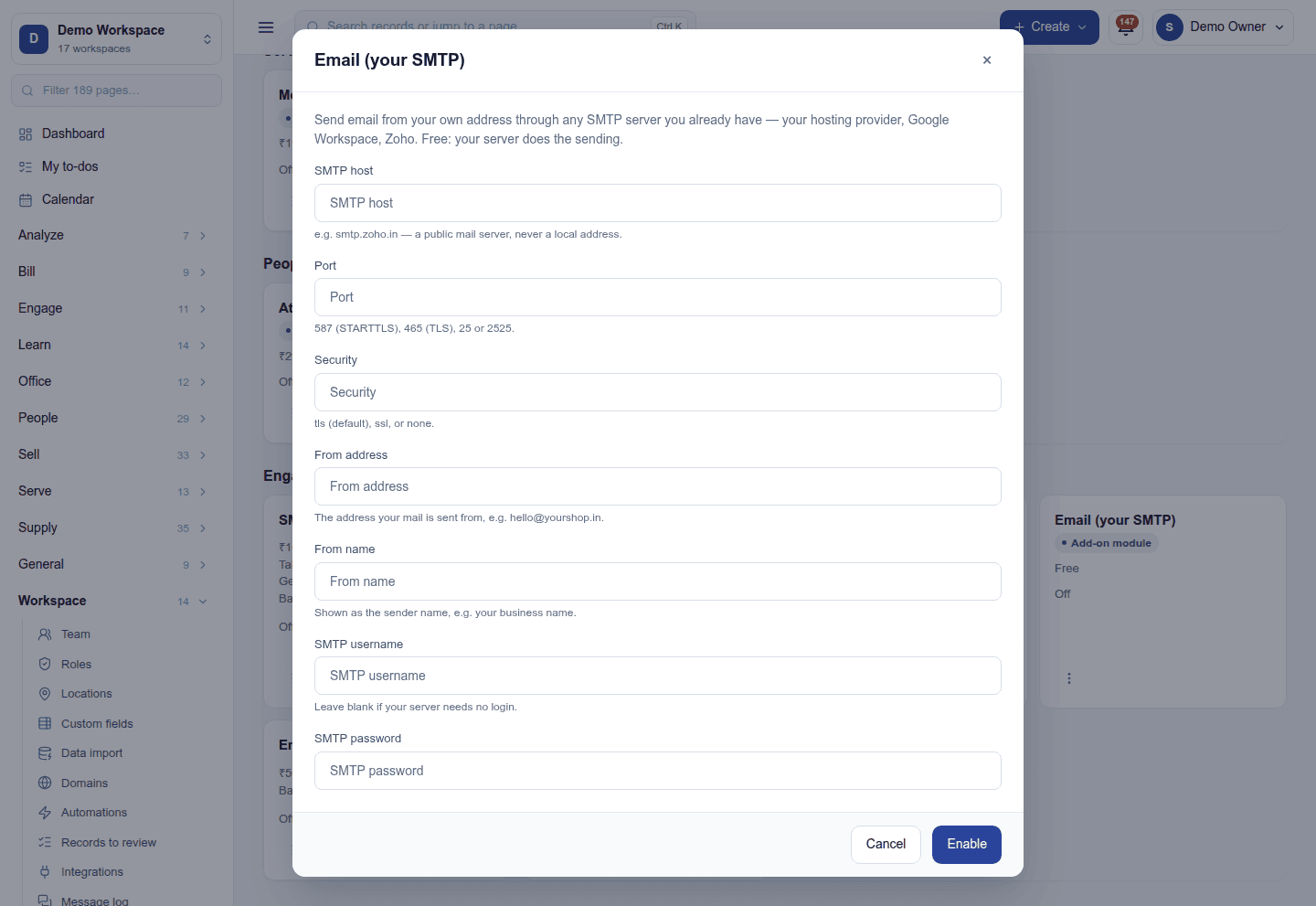
| Field | Required | What to enter |
|---|---|---|
| SMTP host | Yes | For example smtp.zoho.in. It must be a public mail server, never a local address. |
| Port | Yes | 587 (STARTTLS), 465 (TLS), 25 or 2525. No other port is accepted. |
| Security | No | tls (the default), ssl or none. |
| From address | Yes | The address mail is sent from, such as hello@yourshop.in. |
| From name | No | The sender name people see, usually the business name. |
| SMTP username | No | Leave blank if the server needs no login. |
| SMTP password | No | Write-only once saved. |
Why a local address is refused: the host is the one add-on setting that names a server the platform connects to, so it is checked like a webhook. Localhost and private or reserved addresses are refused when you save, and at every send the host is looked up again, must still be public, and the connection is made to the address that was checked. The server's certificate is still checked against its name.
Checking it works
Once it is on, Send test email on the ⋮ menu sends a message to you through these settings. If the server refuses, its own words come back on screen.
Several email senders
Only one email sender serves at a time; its card carries a Default badge. A sender switched on later starts as a stand-by and never takes over by itself. Make default on its ⋮ menu switches over at once.
Turning it off
Turn off on the ⋮ menu asks first and keeps the settings. Mail falls back to another sender if one is on, or to the platform's address for one-to-one mail; bulk mail stops until a sender is connected again.
Ready-made automations
None. An email add-on changes who mail is sent from; it adds no moment of its own.
In the desktop and mobile apps
Nothing to set up in the apps.
Related guides
- Email (Brevo), Email (Gmail / Google Workspace), Email (Microsoft 365 / Outlook)
- Module guides index