







































Shipping (Shiprocket)
Books couriers for the workspace's orders through its own Shiprocket account: one connection, twenty-plus courier partners, with the AWB number, the label and tracking on every shipment.
| At a glance | |
|---|---|
| Type | Add-on module |
| Group | Sell |
| Price | ₹299 per month (list price) |
| Provides | Book courier shipments |
| Needs | Nothing (a Shiprocket account); orders come from Sales orders or Storefront |
| Offered to | Bakery & sweet shop, Classes & coaching, Clinics, E-commerce, Exporter, Farmer producer organisation, Gym & coaching, Manufacturing, Repairs & field service, Restaurant, Salon & spa, Shops & counters, Trusts & non-profits, Vet clinic & pet shop, Website, Wholesale & building materials |
| Permission | Manage add-ons (addons.manage) to set it up; View orders and Edit orders to ship |
What it does
Shipping (Shiprocket) gives the workspace the Book courier shipments capability. Once it is on, every order's page gains a Shipments block with Ship order, the Shipments screen appears under General, and the online shop can price delivery with the courier's own rates.
Switching it on
- Go to Workspace → Modules, filter to Add-on modules. Shipping (Shiprocket) is under Sell.
- Open its ⋮ menu and choose Enable.
- Fill in the dialog and press Enable.
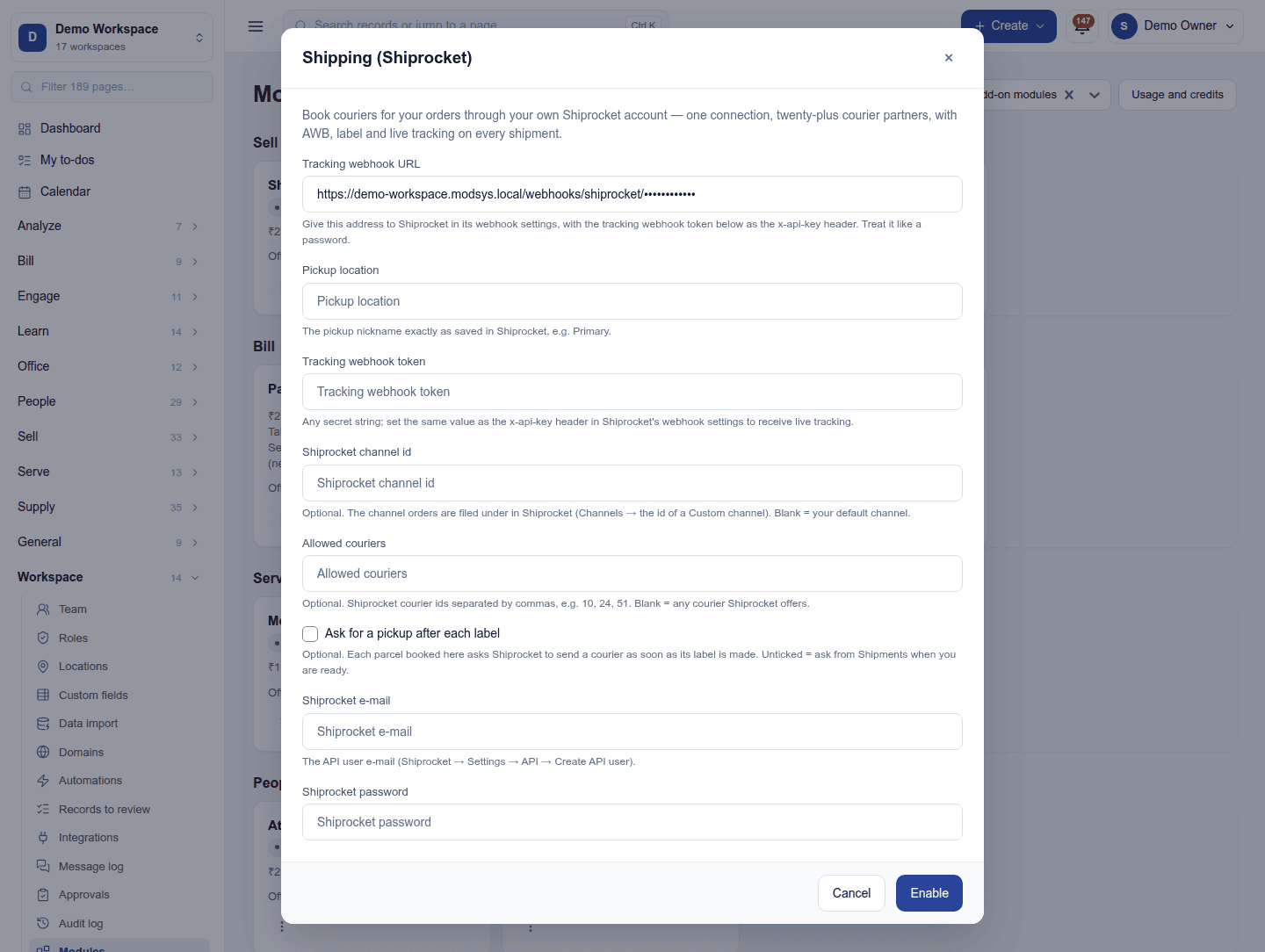
| Field | Required | What to enter |
|---|---|---|
| Pickup location | Yes | The pickup nickname exactly as saved in Shiprocket, for example Primary. |
| Tracking webhook token | No | Any secret string, set as the x-api-key header in Shiprocket's webhook settings, for live tracking. |
| Shiprocket channel id | No | The channel orders are filed under in Shiprocket (Channels → the id of a Custom channel). Blank means your default channel. |
| Allowed couriers | No | Shiprocket courier ids separated by commas, such as 10, 24, 51. Blank means any courier Shiprocket offers. |
| Ask for a pickup after each label | No | Ticked: each parcel booked here asks Shiprocket to send a courier as soon as its label is made. Unticked: ask from Shipments when ready. |
| Shiprocket e-mail | Yes | The API user's email (Shiprocket → Settings → API → Create API user). |
| Shiprocket password | Yes | The API user's password. Write-only once saved. |
Live tracking: the dialog shows the workspace's Tracking webhook URL. Give that address to Shiprocket in its webhook settings, with the Tracking webhook token as the x-api-key header, and each parcel's status then updates as Shiprocket reports it. Without the token, tracking is checked every 30 minutes and can be refreshed by hand with Refresh tracking. Treat the address like a password.
Shipping an order
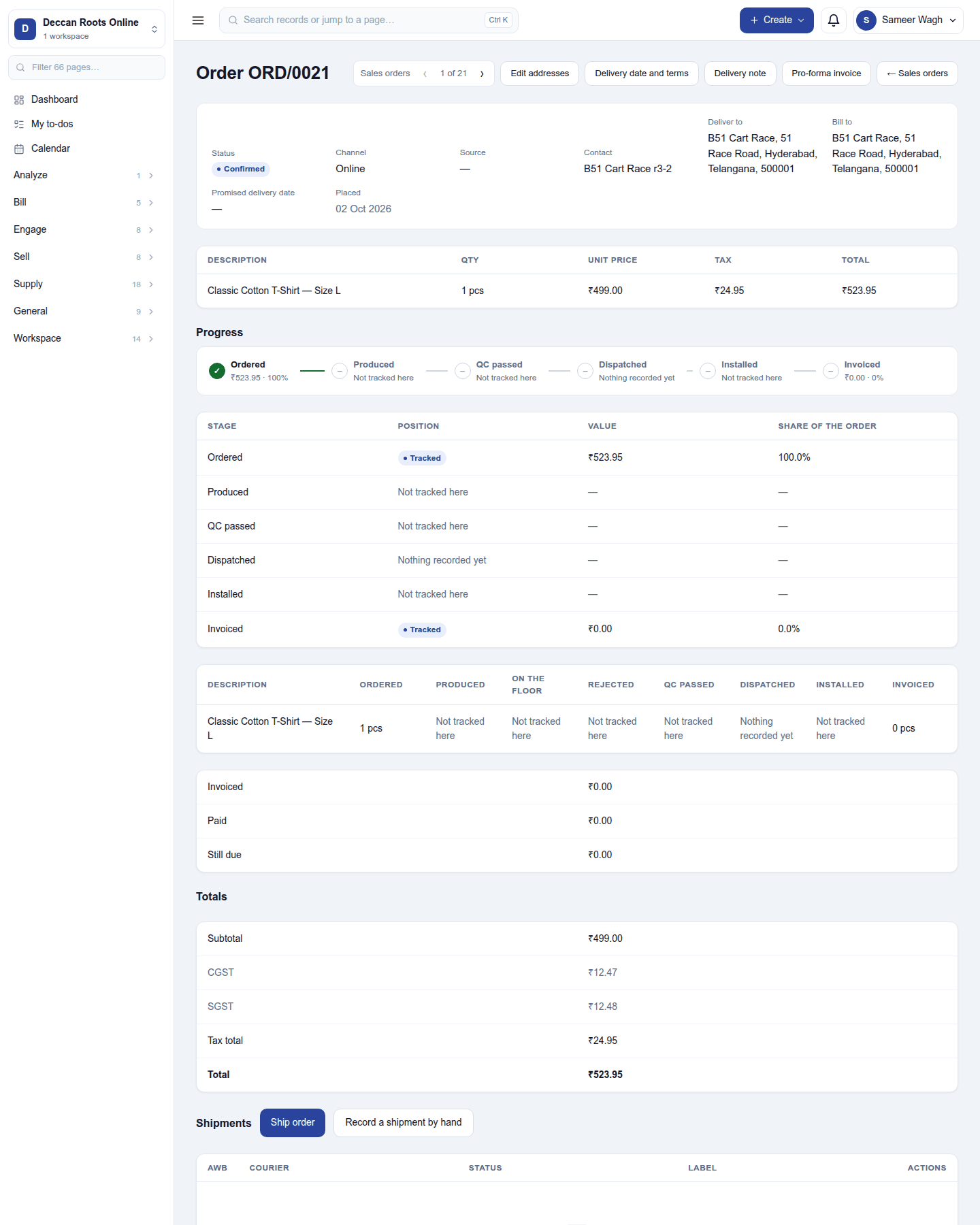
- Open the order and press Ship order in the Shipments block.
- Check the delivery address and PIN code, and enter the parcel Weight (kg, or lb in imperial units), and optionally its size and Cash on delivery. A saved package preset fills the size and weight.
- To choose the courier, press Compare couriers: the picker lists each courier with its price, days and rating, the recommended one first. Or leave Let Shiprocket choose.
- Press Book shipment. The shipment shows its AWB number, the courier and an Open label link for the printable label.
A booking Shiprocket refuses stays on the list as Failed with Shiprocket's own words (a wrong pickup nickname, a PIN code nobody serves), so the reason is never a mystery.
Each shipment moves through Pending → Booked → In transit → Delivered (or Failed / Cancelled), with the courier's own status wording beside it. Its ⋮ menu offers Refresh tracking, Request pickup and Cancel shipment. Cancelling also cancels the courier booking; a delivered shipment cannot be cancelled.
The same block offers Record a shipment by hand (a courier booked outside the platform) and, with Fleet, Our own vehicle. Neither needs this add-on.
The Shipments screen
General → Shipments lists every parcel across the workspace's orders: what still has to be handed over, which pickups were asked for, and the manifests made. Select parcels and press Generate manifest for the courier's handover sheet (kept as a PDF). Return parcels (reverse pickups) are booked from the order too.
Turning it off
Turn off on the ⋮ menu asks first. Ship order disappears and the shop stops pricing delivery with Shiprocket's rates. Shipments already booked keep their records. The settings and keys are kept.
Ready-made automations
| Name | Kind | What it does | Starts |
|---|---|---|---|
| Tell me when a delivery fails or comes back | Rule | Tells the workspace owner when a courier delivery fails or is returned. | On |
In the desktop and mobile apps
Not carried. The restaurant desktop and Captain apps do not ship orders by courier.