







































Documents (DMS)
The workspace's document store: folders with their own access, files filed under contacts and records, share links, requests for a file from someone, email into a folder, locking a file while it is worked on, revisions, favourites and a trash.
| At a glance | |
|---|---|
| Type | Business module |
| Group | Office |
| Needs | Nothing. Every file lives in the platform's File Manager. |
| Included in | Shops & counters, Manufacturing, Trusts & non-profits, Clinics, Services & appointments, Schools & colleges, Exporter, Professional practice and others |
| Offered to | Every industry pack |
| Permissions | View documents (documents.view), Manage documents (documents.manage) |
Switching it on
Workspace → Modules → Documents (DMS) → Enable (needs Manage modules). Documents appears under Office, with its Shared links and File requests screens.
Documents
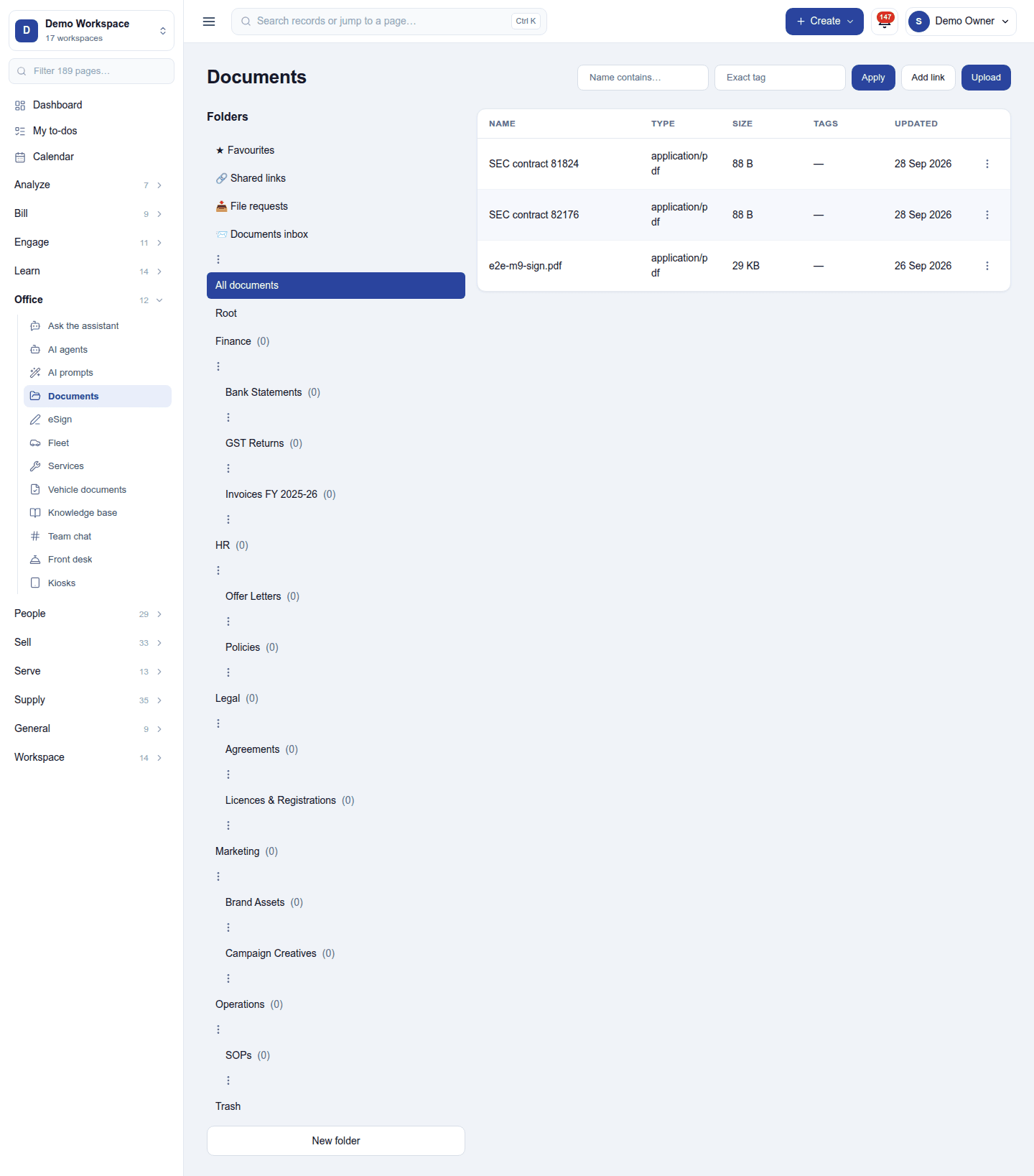
Office → Documents has the folder tree on the left (Favourites, Shared links, File requests, the Documents inbox, then your folders) and the folder's files on the right, with their type, size, tags and when they were updated. Search by name and tag; Upload adds files; New folder adds a folder.
- Who can see a folder: everyone, or only chosen roles and people; a file inherits its folder's access.
- Filed under a record: a document can belong to a contact, order, project and more, and shows on that record.
- Web links sit in a folder beside files.
- A file's ⋮ menu: download, rename, move, tag, Lock while you work on it (others see who holds it), upload a new revision (the old ones are kept), Share, favourite, delete to the Trash.
Sharing and asking for files
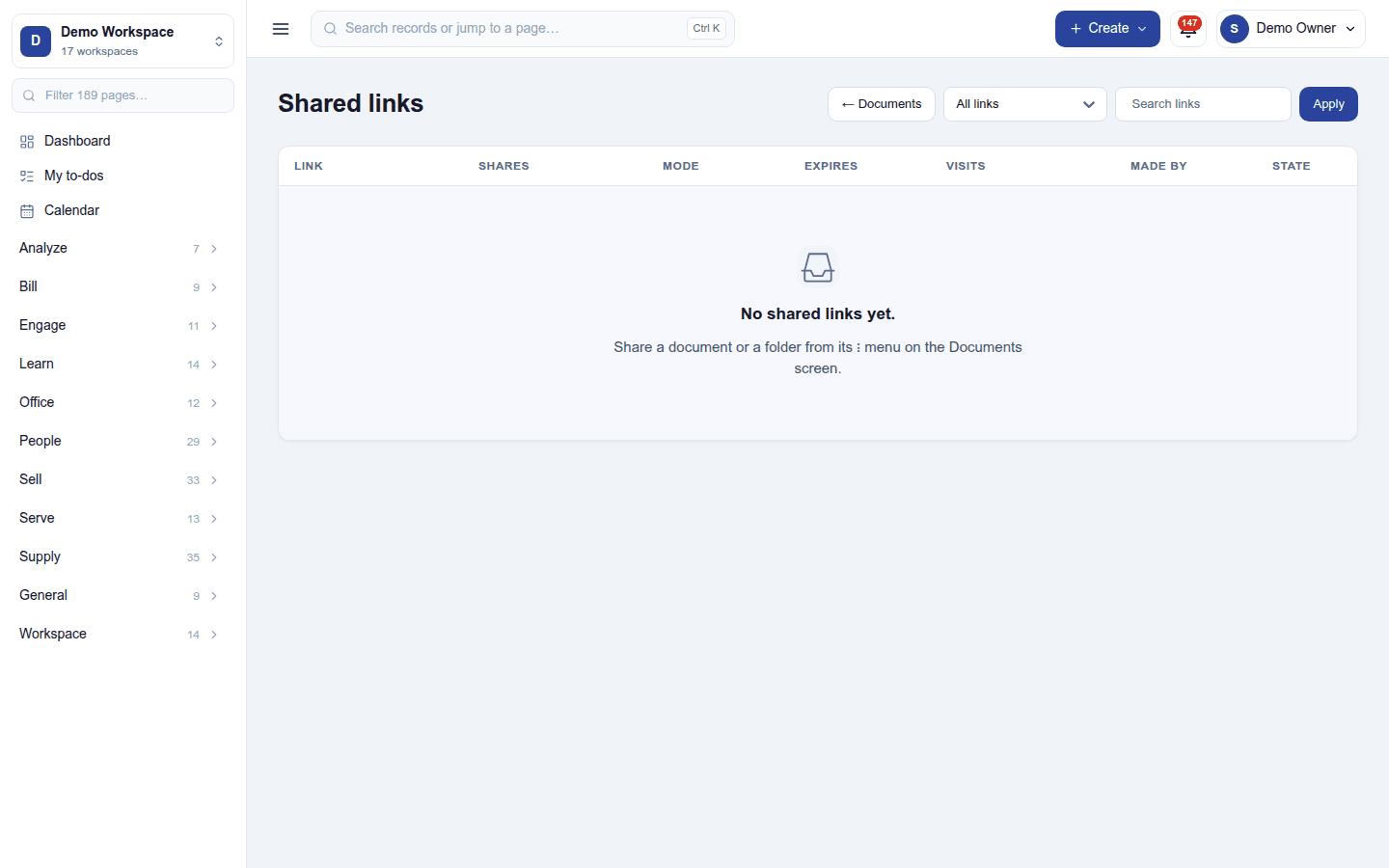
- Share a file or a folder by link, with an expiry, a password and whether it may be downloaded. Shared links lists every link with its visits and state, to revoke one.
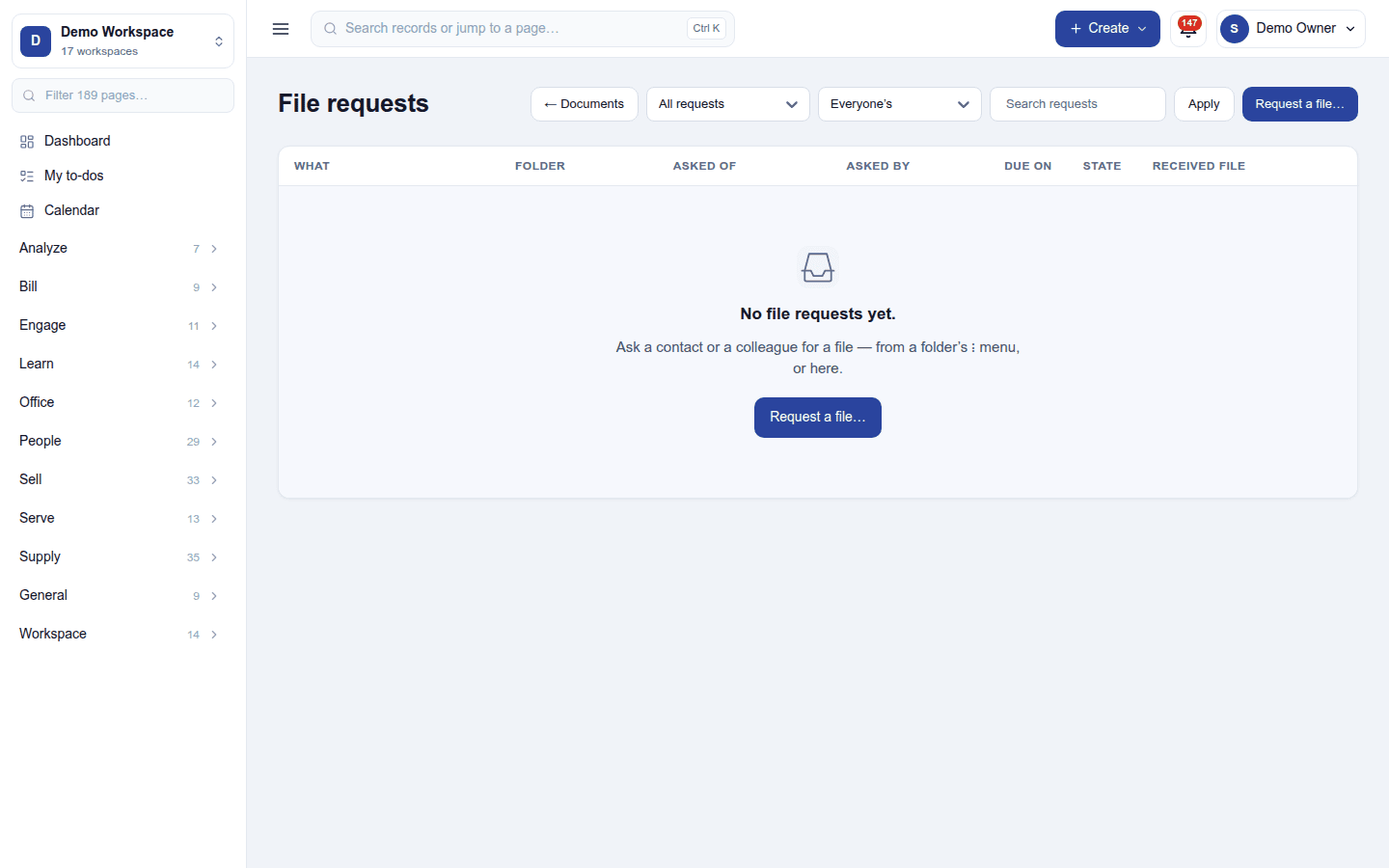
- Request a file asks a contact or a colleague to upload something into a folder by a date, through a private link. File requests lists who was asked and what arrived.
- Email to a folder: each folder can have a private address; attachments mailed to it are filed there. The Documents inbox catches mail to the workspace's documents address and files it by sender.
Settings
Settings → Documents (DMS) → Trash retention days (30): how long a deleted file stays in the Trash before it is removed for good.
Permissions
| Permission | Allows |
|---|---|
View documents (documents.view) |
See the folders and documents one may open. |
Manage documents (documents.manage) |
Upload, file, share, request, lock and delete documents; set folder access. |
Ready-made automations
None. Document requests and expiry are handled by their own screens.
Turning it off
The Documents screens leave the menu and share links stop opening. Files stay in the File Manager.
In the desktop and mobile apps
Not carried.