







































Expenses
Records what the business spends outside purchase orders (travel, meals, fuel, site costs), with the receipts attached, sends claims for approval, posts them to the books, pays back staff who paid out of their own pocket, and can re-bill a cost to the customer it was spent for.
| At a glance | |
|---|---|
| Type | Business module |
| Group | Bill |
| Needs | Nothing. Posting needs Accounting; claimants need HR core; re-billing needs Sales orders; paying back through the payslip needs Payroll. |
| Included in | Almost every pack, from Shops & counters to Contractors |
| Offered to | Every industry pack |
| Permissions | View expenses (expenses.view), Manage expenses (expenses.manage) |
Switching it on
Workspace → Modules → Expenses → Enable (needs Manage modules). Expenses appears under Bill, and Settings gains an Expenses page for categories.
The register
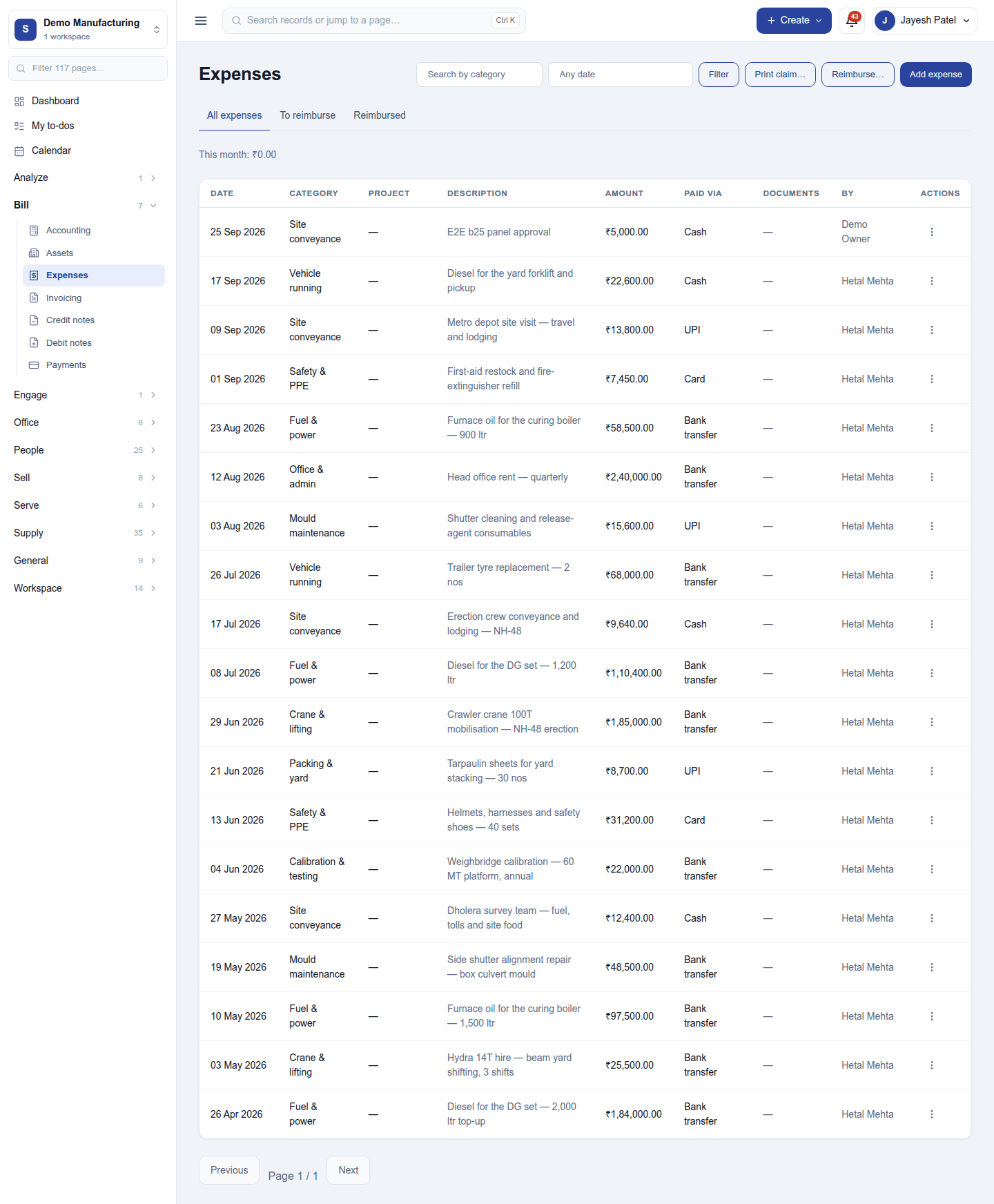
Bill → Expenses lists every claim: date, category, project, description, amount, how it was paid, documents and who recorded it, with This month's total at the top. The tabs filter All expenses / To reimburse / Reimbursed; the header filters by category and date, and holds Print claim…, Reimburse… and Add expense.
Recording an expense
Add expense opens New expense:
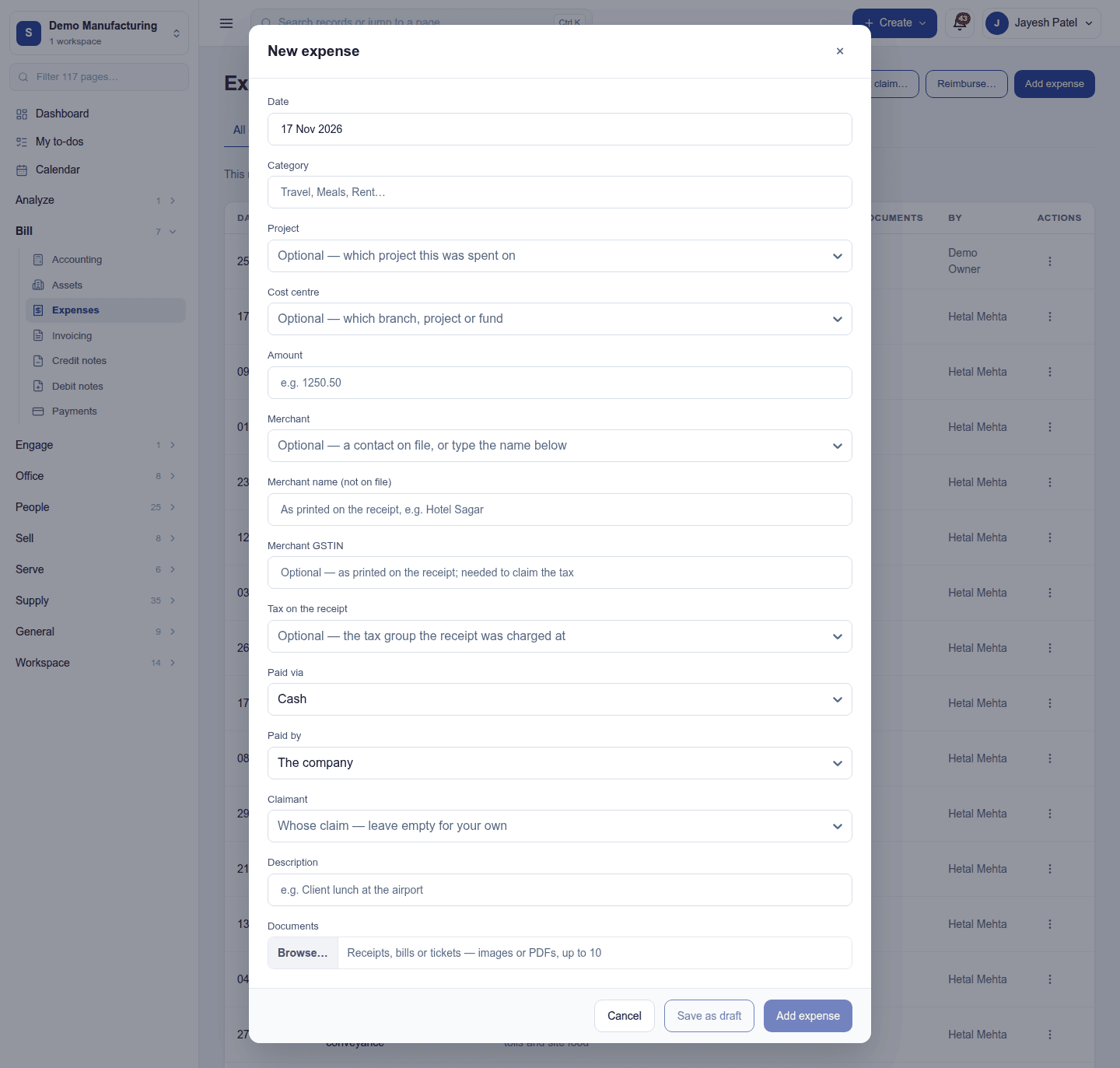
| Field | What to enter |
|---|---|
| Date | When it was spent. A date in a closed period is refused. |
| Category | A category from Settings (or Other - type a category). A category with a rate asks for a quantity instead (12.5 km), and the amount is quantity × rate. |
| Project / Cost centre | Optional: what it was spent on (Projects on) and which branch, project or fund. |
| Amount | What it cost |
| Merchant, Merchant GSTIN | Who was paid, a contact on file or a typed name, and their tax number as printed on the receipt. The tax number is needed to claim input tax. |
| Tax on the receipt | The tax group the receipt was charged at. With a merchant tax number, the dialog shows how much is claimable input tax and how much is the expense. |
| Paid via | Cash, card, UPI, bank transfer … |
| Paid by | The company, or The employee - to be paid back. |
| Claimant | Whose claim it is (with HR on). Empty means your own. |
| Description | What it was for |
| Documents | Receipts, bills or tickets: images or PDFs, up to ten |
Parts: one receipt that paid for several things can be split into parts, each with its own category and amount; the parts must add up to the total.
The footer has three buttons:
- Save as draft: saved as a Draft. Nobody is asked and nothing is posted.
- Add expense: recorded and posted, or, where an approval rule applies, sent for approval and posted once approved.
- Cancel.
A claim that looks like one already recorded, or like a vendor bill, is flagged as a Possible duplicate (Like vendor bill VB/0012), so the same receipt is not booked twice.
Drafts, approval and refusals
- A Draft, Rejected or Withdrawn claim can be edited from its ⋮ menu, and sent with Submit or Submit again.
- A rejected claim shows the approver's note beside its red Rejected badge and at the foot of the Edit dialog.
- A claim that is recorded or awaiting approval cannot be edited: record a correcting expense, or withdraw it from Workspace → Approvals first.
Approval rules are set under Workspace → Approvals (see Approvals).
Paying staff back
A claim paid by the employee waits on To reimburse until it is paid back. There are two ways:
- Reimburse… (or ⋮ → Pay back… on a row) opens Pay an employee back: pick the employee (Asha · 3 claims, ₹2,000.00 owed), tick their claims, and enter Paid on, Paid via and an optional reference. A claim is paid back in full; to pay less, untick a claim.
- Through payroll (with Payroll on): mark the claim to be paid back on the payslip, and the next payroll run adds it.
Each paid-back claim moves to Reimbursed, with the day it was paid.
On the books
With Accounting on and posting by itself, a recorded claim is debited to its category's account (or General expense 5000) and credited to Cash/Bank, or to 2090 Employee Reimbursements Payable when the employee paid. Paying them back clears 2090. Claimable input tax goes to the tax accounts, and the cost centre travels on every line. With Accounting off, the register still works and says nothing was posted.
Expense categories
Settings → Expenses → Expense categories:
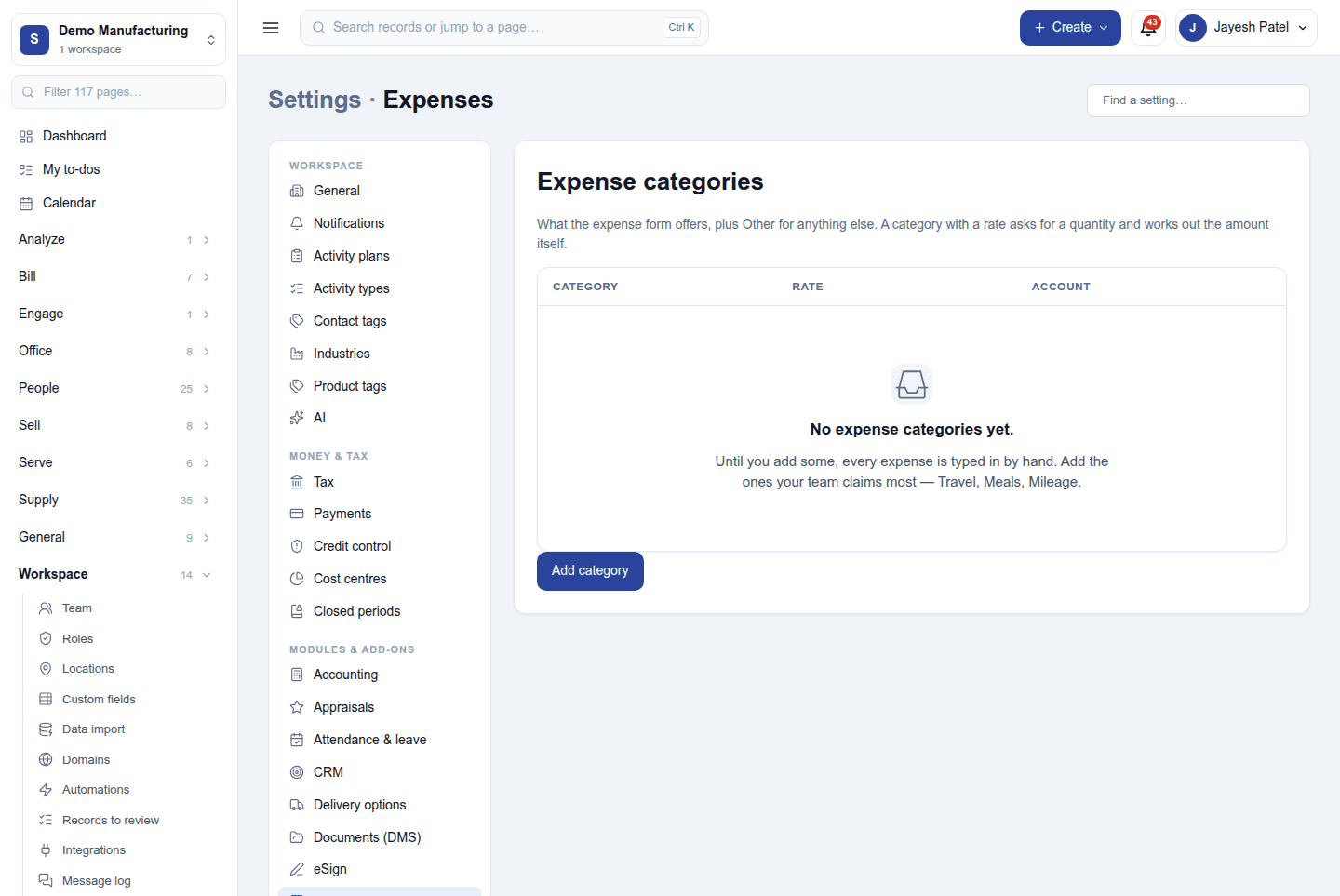
Add category asks for:
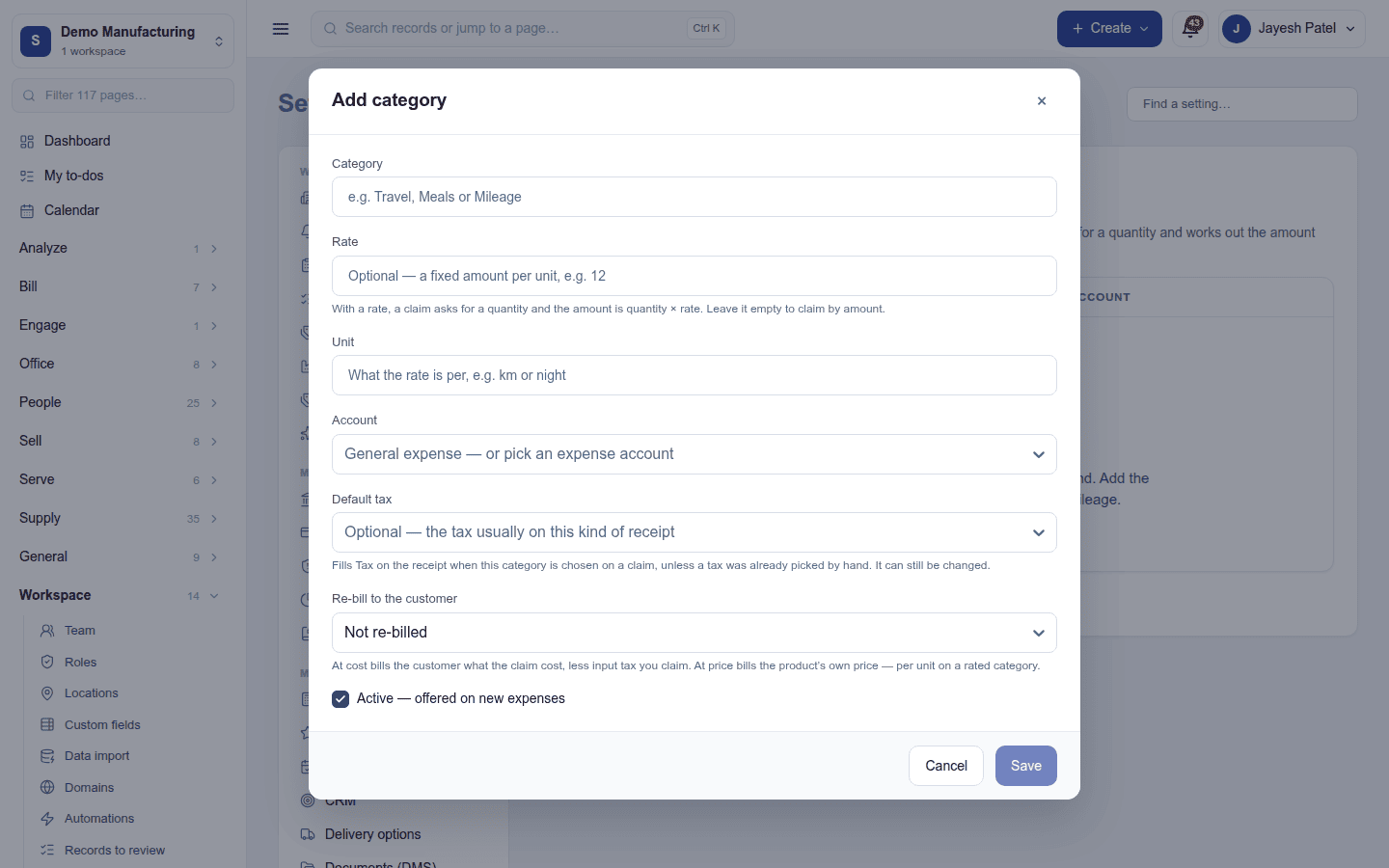
| Field | What it does |
|---|---|
| Category | Its name, unique in the workspace |
| Rate and Unit | Optional. With a rate (12 per km), a claim asks for a quantity and the amount is worked out. |
| Account | The ledger account its expenses go to (Accounting on; choosing it needs Manage accounting) |
| Default tax | The tax usually on this kind of receipt. A new claim in the category starts with it in Tax on the receipt. |
| Re-bill to the customer | Not re-billed, At cost (the customer is billed what it cost, less input tax claimed) or At price (the product's own price, per unit on a rated category). Needs Sales orders on. |
| Active | Offered on new expenses. A category in use is deactivated rather than deleted. |
Permissions
| Permission | Allows |
|---|---|
View expenses (expenses.view) |
See the register, the claims and their documents. |
Manage expenses (expenses.manage) |
Record, edit, submit and pay back claims, and keep the categories. |
Ready-made automations
| Name | Kind | What it does | Starts |
|---|---|---|---|
| Tell people when their expense is paid back | Rule | Tells the person who claimed an expense when it is reimbursed. | On |
Turning it off
Expenses leaves the menu and Settings. Claims, documents and their postings are kept.
In the desktop and mobile apps
Not carried.