







































Hostel
Keeps the hostels, their rooms and beds, and who stays where: allocating a student to a room and vacating the bed when they leave.
| At a glance | |
|---|---|
| Type | Business module |
| Group | Learn |
| Needs | Nothing (residents are contacts, usually students) |
| Included in | Schools & colleges, PG & student housing |
| Offered to | Schools & colleges, Classes & coaching, PG & student housing, Trusts & non-profits |
| Permissions | View hostels (hostel.view), Manage hostels (hostel.manage) |
Switching it on
Workspace → Modules → Hostel → Enable (needs Manage modules). Hostel appears under Learn.
Hostels and rooms
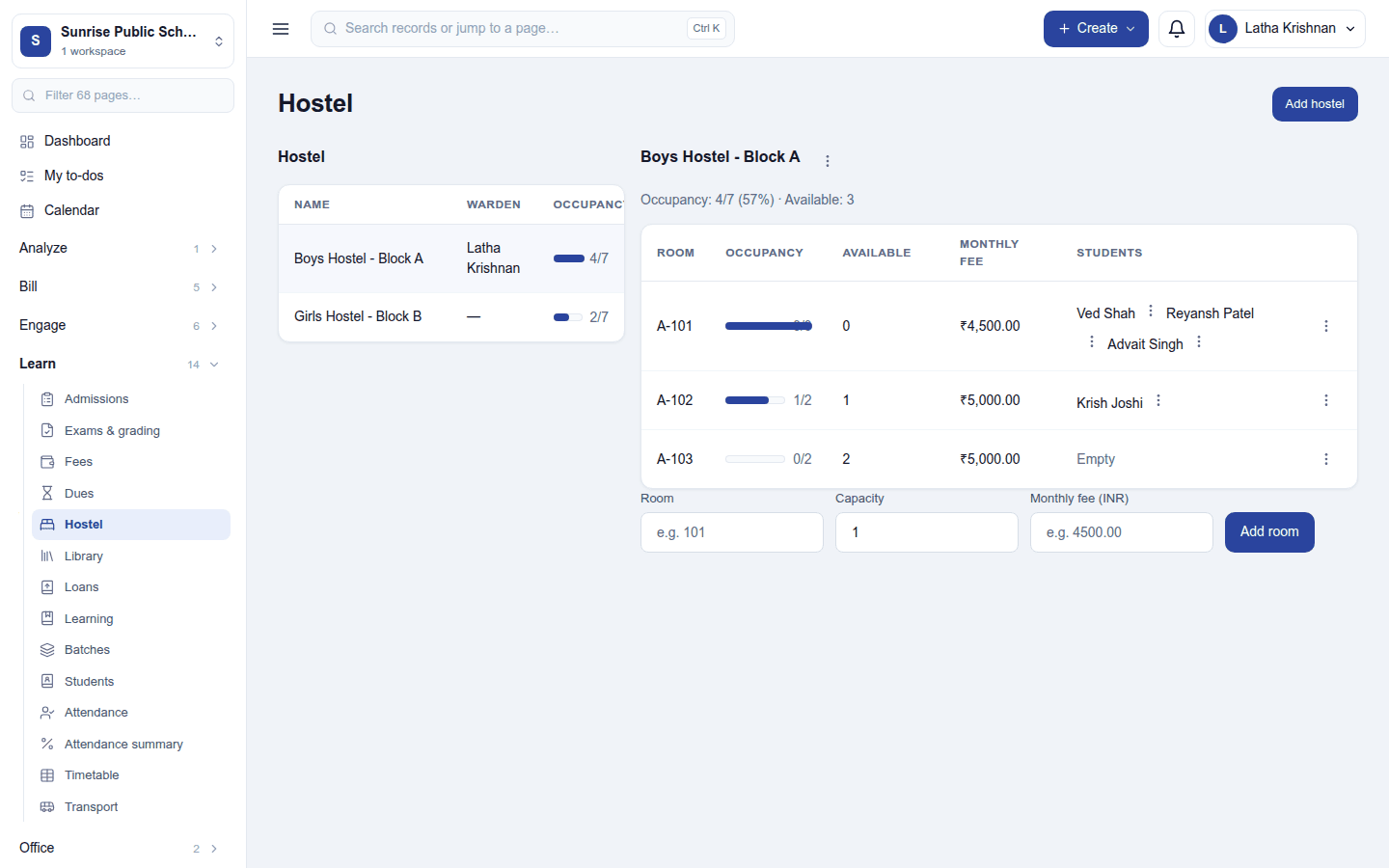
Learn → Hostel lists the hostels with their warden and occupancy (beds taken of beds there). Add hostel asks for a name (for example Boys Block A) and, optionally, the warden, a staff member.
Click a hostel to see its rooms. The heading shows the hostel's occupancy as a figure and a percentage, and how many beds are free. Each room shows:
- its room number, an occupancy bar (beds taken of its capacity) and how many beds are available;
- its monthly fee;
- the students in it, each with a ⋮ menu to Vacate the bed.
Add a room with the row under the list: Room, Capacity (beds) and Monthly fee, then Add room. A room's ⋮ menu offers Allocate student, Edit and Delete.
Allocating a bed
On the room's ⋮ menu, choose Allocate student, pick the student and the date, and save. The room's occupancy and the hostel's figures update at once. Two allocations are refused with a reason: a full room (This room is full.) and a student who already has a room (This student is already allocated a room.). A room's capacity cannot be lowered below the students in it. Vacate frees the bed for someone else (it asks first).
The monthly fee is a record of what the room costs, shown beside it. The hostel does not raise invoices by itself; bill the fee through Fees.
Deleting: an occupied room, or a hostel with anyone in it, cannot be deleted.
Permissions
| Permission | Allows |
|---|---|
View hostels (hostel.view) |
See hostels, rooms and who stays where. |
Manage hostels (hostel.manage) |
Add hostels and rooms, allocate and vacate beds. |
Ready-made automations
None. Allocations are made by staff on the spot.
Turning it off
Hostel leaves the menu. Hostels, rooms and allocations are kept.
In the desktop and mobile apps
Not carried.
Related guides
- Student information (SIS), Fees, Reservations (room stays for paying guests)
- Module guides index