







































Exams & grading
Sets exams for a class, takes each student's marks subject by subject, grades them on the workspace's grading scale, and publishes the results as report cards.
| At a glance | |
|---|---|
| Type | Business module |
| Group | Learn |
| Needs | Nothing (the students come from Student information) |
| Included in | Schools & colleges, Classes & coaching |
| Offered to | Schools & colleges, Classes & coaching, Corporate training |
| Permissions | View exams (exams.view), Manage exams (exams.manage) |
What it does
An exam (for example Unit Test 1) belongs to an academic year and one class or section. It has subjects, each with a maximum and a pass mark. Marks are entered per subject; every mark is turned into a percentage and a grade from the grading scale, and a Pass or Fail. Publishing freezes the marks and locks the exam.
Switching it on
Workspace → Modules → Exams & grading → Enable (needs Manage modules). Exams & grading appears under Learn, and Settings gains its page with the grading scale.
The grading scale
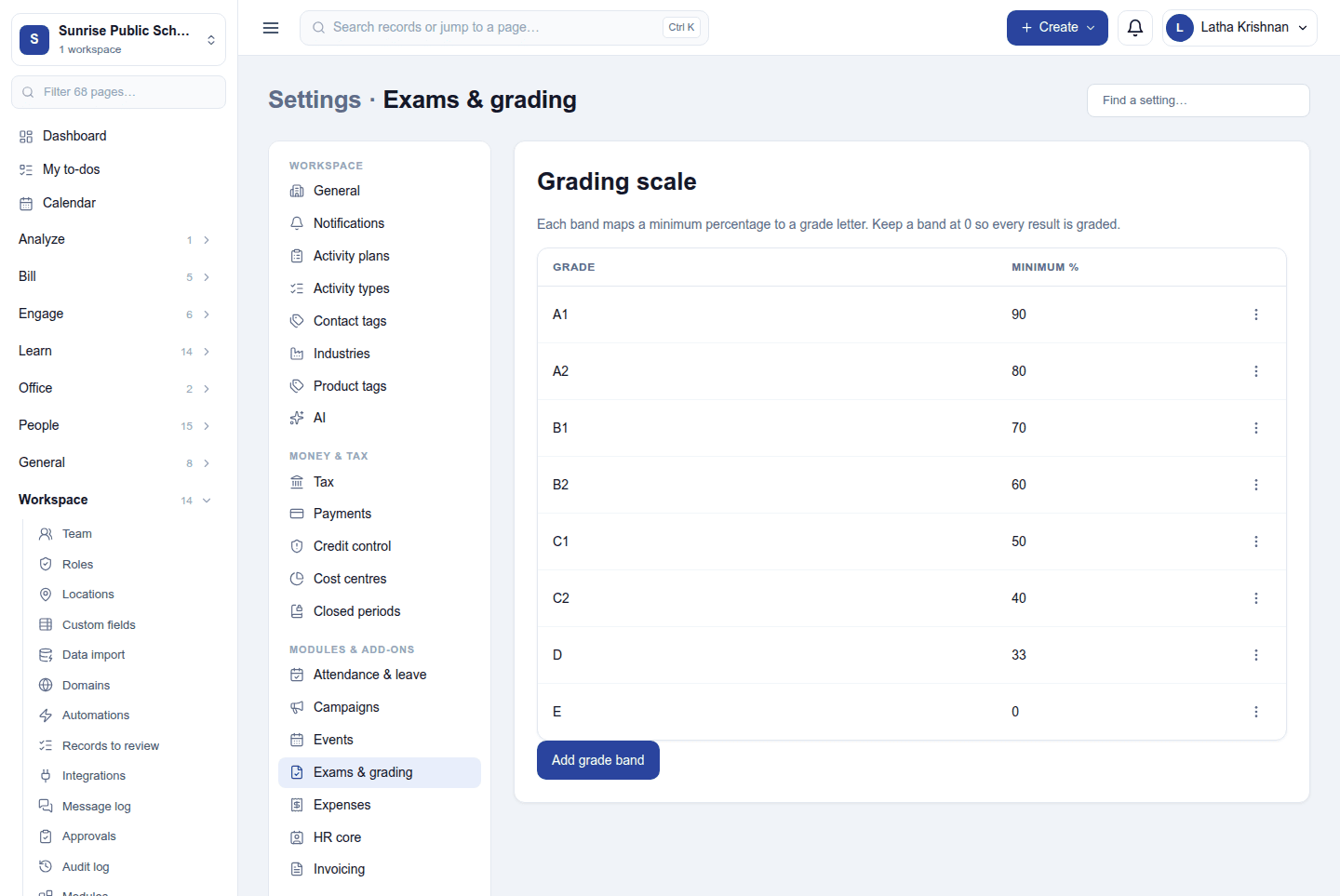
Settings → Exams & grading → Grading scale: each band maps a minimum percentage to a grade letter (A1 from 90%, A2 from 80% …). Keep a band at 0 so every result gets a grade. Add grade band; edit or delete one from its ⋮ menu.
Exams
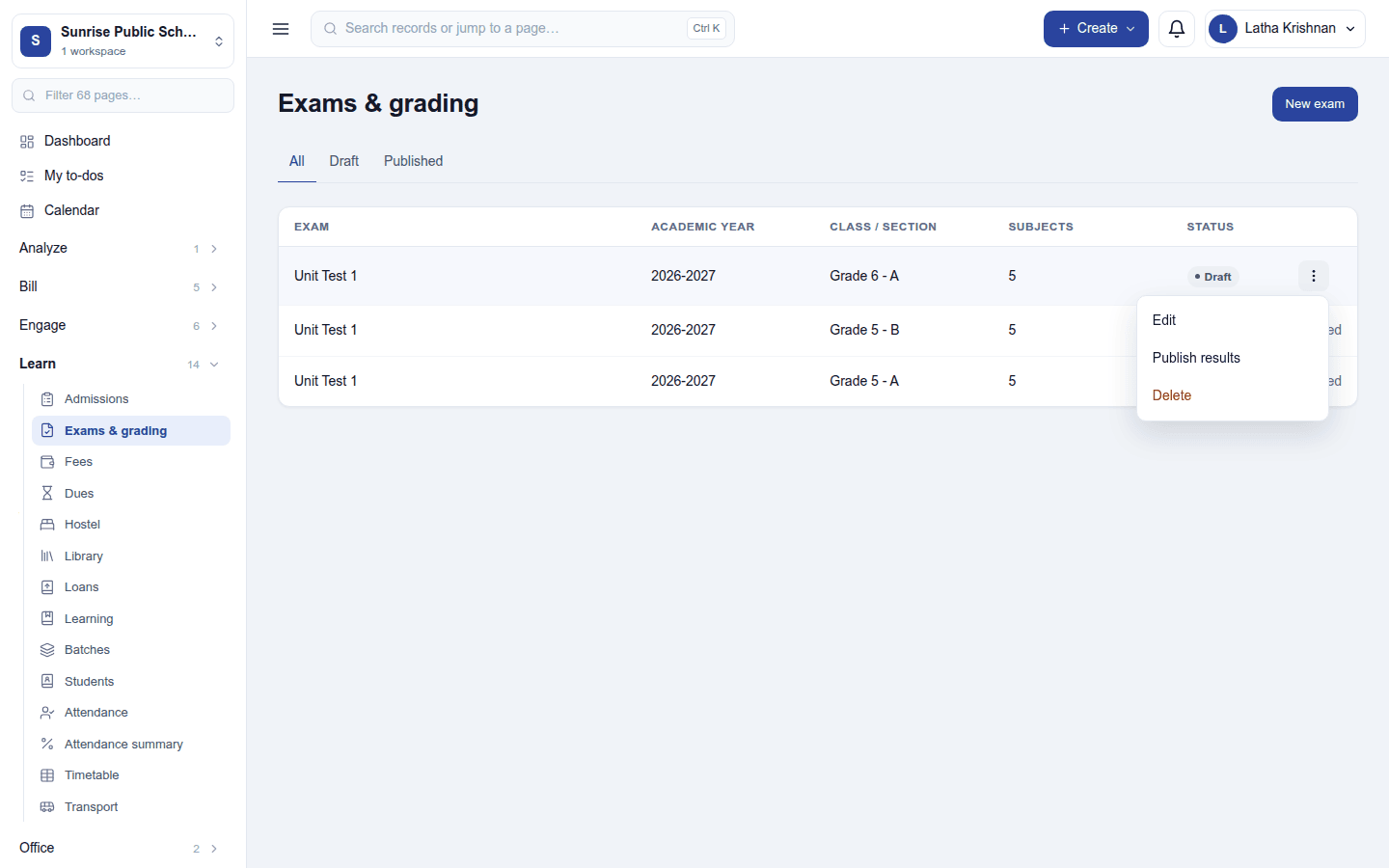
Learn → Exams & grading lists the exams with their year, class and section, number of subjects and status. The tabs filter All / Draft / Published; a published exam reads Locked. A draft exam's ⋮ menu has Edit, Publish results and Delete (which removes its subjects and marks too).
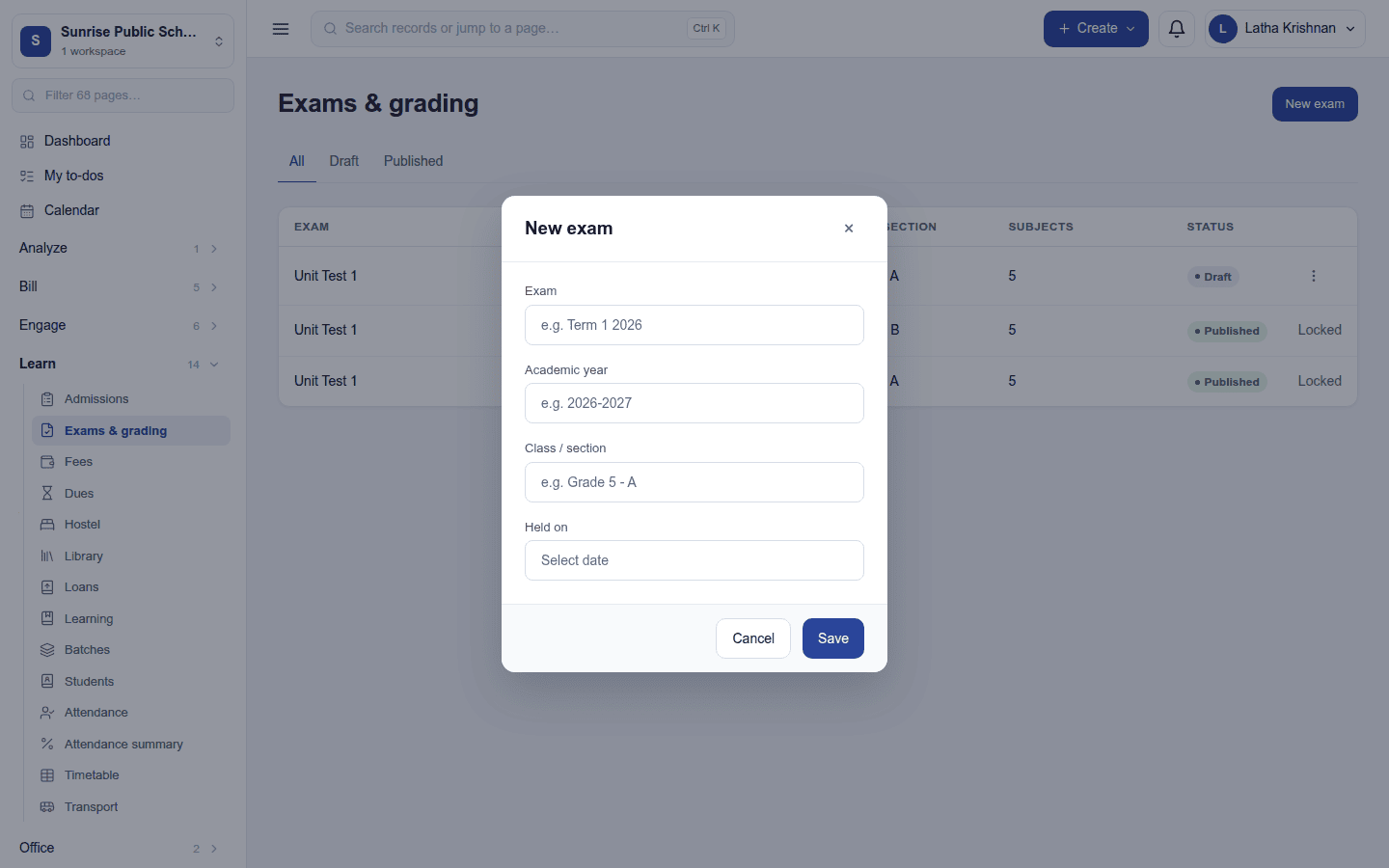
New exam asks for the exam's name, academic year, class or section and date:
Subjects and marks
Click an exam to open it below the list:
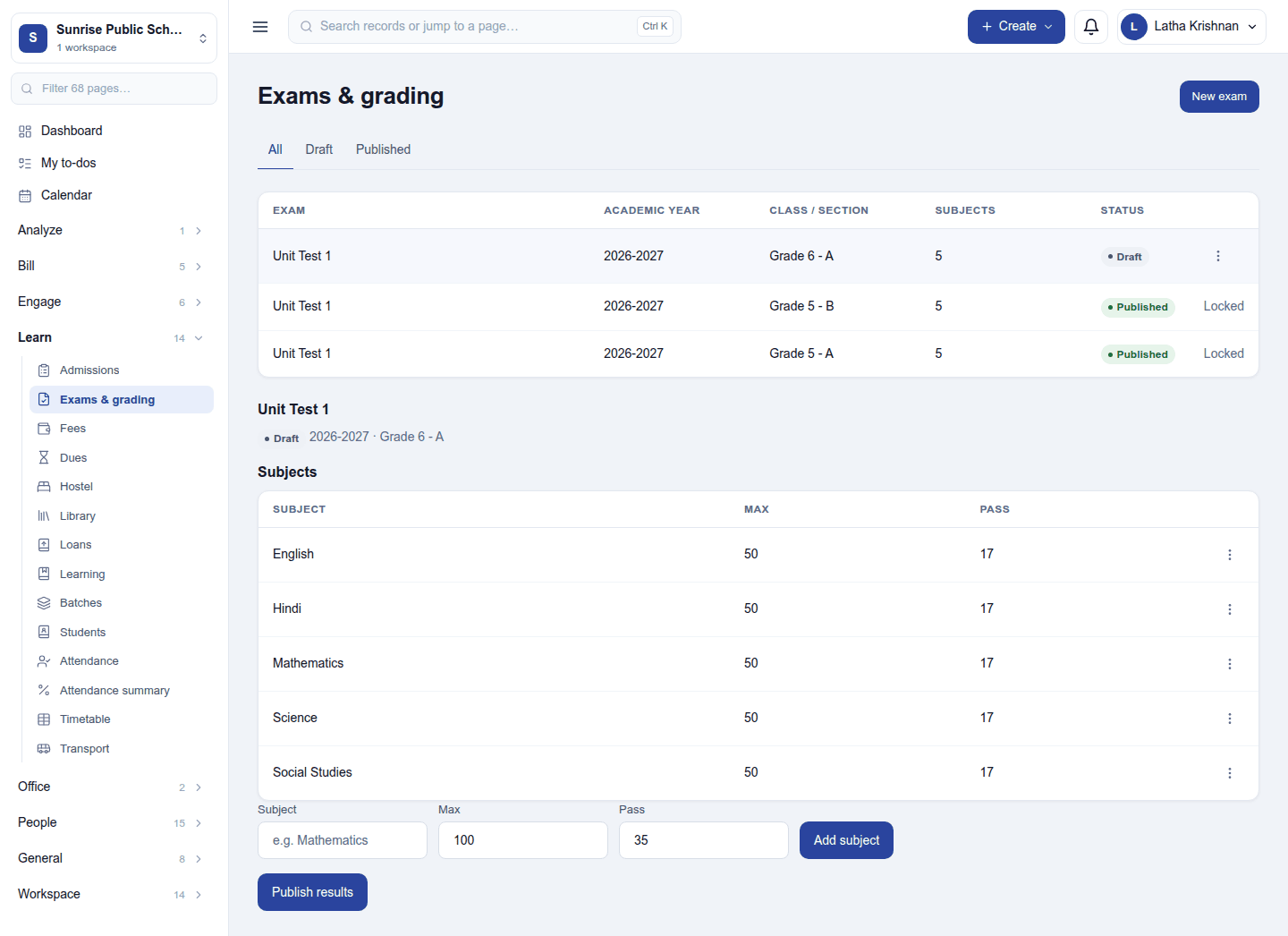
- Add subjects with the inline row at the foot of Subjects: the subject, its Max and its Pass mark.
- On a subject's ⋮ menu, choose Enter marks. Each student of the class is listed: type the Marks or tick Absent, then Save marks. Saving again corrects the marks.
- Each student's Report card shows every subject with marks, max, percentage, grade and result, and the overall figures.
- When every subject is in, Publish results. It asks first: Publishing freezes all marks and locks the exam. This cannot be undone.
Permissions
| Permission | Allows |
|---|---|
View exams (exams.view) |
See exams, marks and report cards. |
Manage exams (exams.manage) |
Set exams and subjects, enter marks, publish, and keep the grading scale. |
Ready-made automations
None. Results go out when they are published.
Turning it off
Exams & grading leaves the menu and Settings. Exams, marks and the grading scale are kept.
In the desktop and mobile apps
Not carried.
Related guides
- Student information (SIS), LMS (quizzes inside courses)
- Module guides index