







































UPI QR payments
UPI QRs that tell you the moment a customer pays. The till shows a QR for the exact amount and completes the sale by itself, and a counter QR on a standee takes any amount, each payment announced on your screens and phones and picked onto a sale in one tap.
| At a glance | |
|---|---|
| Type | Business module |
| Group | Bill |
| Needs | An Indian workspace billing in rupees, and your own account with Razorpay (Settings → Payments), PhonePe or Paytm (Settings → UPI QR payments) |
| Included in | Every pack that runs a till: Restaurant, Retail, Hotel, Clinic, Vet clinic, Bakery and sweets, Salon and spa, Wholesale trading, Farmer producer, Nonprofit |
| Offered to | Every industry pack |
| Permissions | View UPI payments (upi_qr.view), Manage UPI QRs (upi_qr.manage) |
Why your own payment company account
A plain QR of your UPI ID sends money straight to your bank, and nothing tells your till that it arrived: the cashier has to look at the customer's phone. A QR made by your own account with a payment company is different: the company tells us about every payment on it, so the till and your phones hear the money arrive. The money settles to your bank account through that company. UPI payments to a business carry no fee by law.
Three companies can make your UPI QRs:
| Razorpay | PhonePe | Paytm | |
|---|---|---|---|
| Where you connect it | Settings → Payments | Settings → UPI QR payments → Payment company | Settings → UPI QR payments → Payment company |
| The till's QR for the exact amount | Yes | Yes | Yes |
| Counter QRs | Made here, in a few seconds | With an in-store PhonePe account: the QR PhonePe gave your store, added here by its ID | Not offered: Paytm has no way to tell us about its counter QR |
| What you ask the company for | QR Codes switched on for your account | A payment gateway account (merchant ID, salt key and index from your PhonePe Business dashboard), or its in-store integration (also a store ID) | Dynamic QR switched on for your MID |
While no PhonePe or Paytm account is connected, your QRs are Razorpay's. Connecting one switches new QRs to it; QRs already made keep reporting their payments.
Razorpay: connect it once under Settings → Payments, and set up its webhook there (the card shows the address and the events to tick, including qr_code.credited and qr_code.closed). Without the webhook, payments still arrive, but only when a till or a screen asks Razorpay, a few seconds at a time.
PhonePe and Paytm: Settings → UPI QR payments → Payment company → Connect PhonePe or Paytm asks for the details the company gave you, each field saying where to find it, and whether they are test or live keys. For PhonePe, choose the kind of account first: a payment gateway account needs only the merchant ID, salt key and index; an in-store account also asks for the store (and, if PhonePe gave them, the terminal and provider IDs). A saved secret is never shown again: the field says Saved - ends in …, and leaving it blank keeps it. The card then shows Your payment callback address:
- PhonePe: the till's QRs give it to PhonePe themselves. Ask PhonePe to send your store QR's payments to it too.
- Paytm: set it as the payment notification address in your Paytm dashboard.
Without the callback, the till still finds a payment by asking the company every few seconds while its QR is on screen.
Google Pay and BharatPe: they cannot be connected. Neither Google Pay for Business nor BharatPe offers a way to tell a till about the payments on its QR, so a QR from either would leave the till as blind as a plain UPI ID. Your customers can still pay your Razorpay, PhonePe or Paytm QRs from Google Pay, BharatPe or any other UPI app: the company behind the QR is what matters, not the app the customer pays from.
How far each connection has been tried: the PhonePe payment gateway connection was tried against PhonePe's own public test environment: the QR was made, the till drew it, the payment check and the refund call were answered. PhonePe's in-store test environment and Paytm's answer only merchants they have set up, and neither publishes test details anyone can use, so those two follow the companies' documents and need your own test keys from them before you rely on them.
Switching it on
Workspace → Modules → UPI QR payments → Enable (needs Manage modules). UPI payments and Counter QRs appear under Bill. Workspaces that run a till have it on already.
Two kinds of QR
| The till's QR | A counter QR | |
|---|---|---|
| Where it is | On the till's screen, made for each sale | Printed on a standee or a table card, made once |
| Amount | Exactly the bill: the customer cannot change it | Any amount: the customer types it |
| How the sale finds the money | By itself: the sale completes the moment the payment arrives | The cashier taps Use this payment on the till |
| When it closes | After 10 minutes, or when the sale moves on | When you close it |
Counter QRs
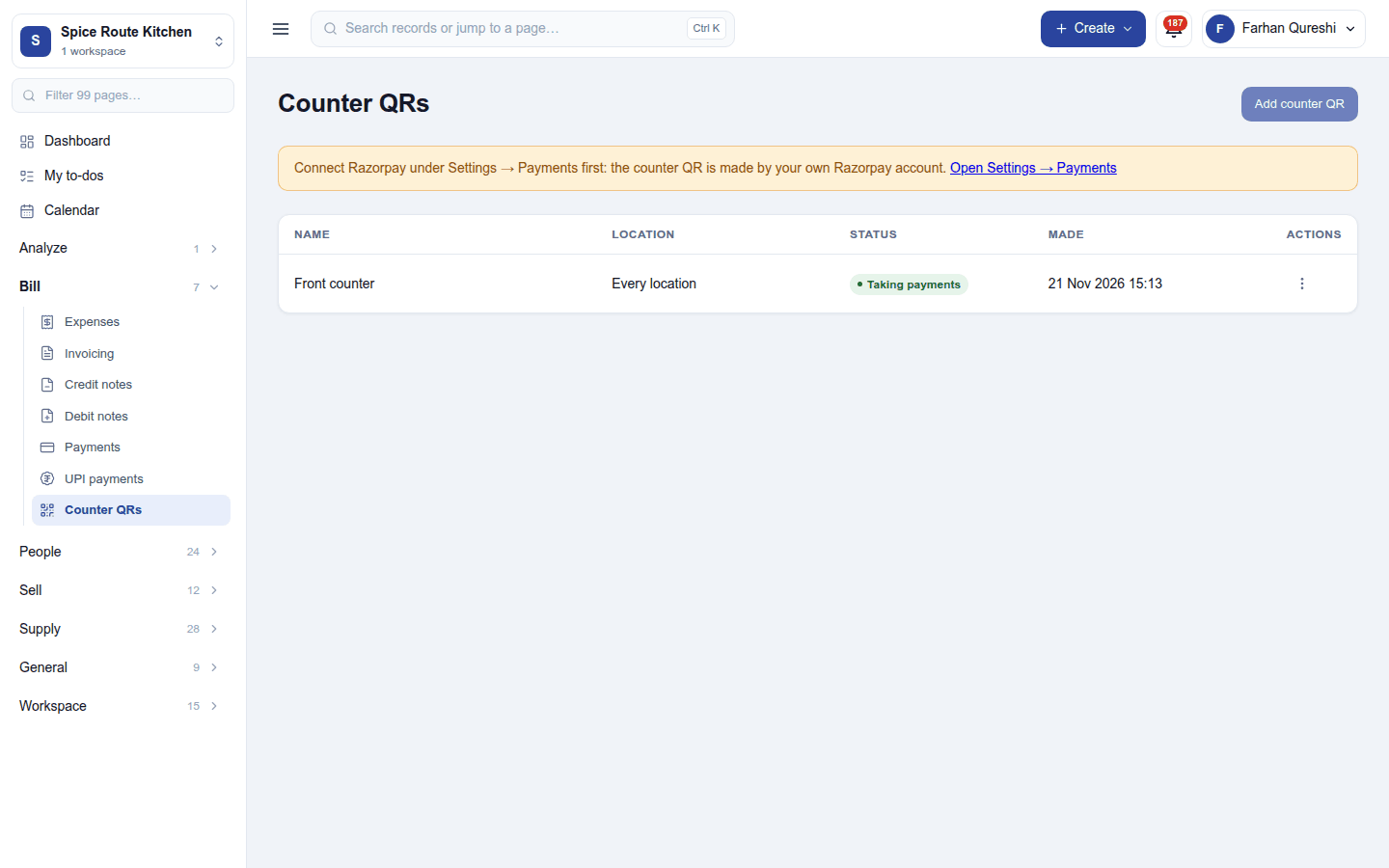
Bill → Counter QRs lists your counter QRs, each with the company behind it. Add counter QR asks for a name ("Front counter", "Table cards") and, optionally, the location it stands at: a till at that location lists its payments, and a QR with no location is listed at every till.
- Razorpay: the QR is made on your Razorpay account in a few seconds and shown at once, ready to print. ⋮ Show the QR shows it again.
- PhonePe (in-store account): PhonePe makes your store's QR itself. Add it by its PhonePe QR code ID (or its terminal ID), as PhonePe gave it to you. The same QR cannot be added twice. A PhonePe payment gateway account has no counter QR, and the page says so.
- Paytm: counter QRs are not offered, and the page says why. The till's QR for the exact amount works.
⋮ Close QR… stops listening to a QR (and closes it on Razorpay). Payments already made on a closed QR stay in the list.
If no company is connected, or the workspace is not Indian or not billing in rupees, the page says so and Add counter QR waits.
At the till
Choose UPI for the bill:
- The till shows its own QR for the exact amount. When the customer pays it, the sale completes by itself.
- Under it, Paid on a counter QR? lists the counter payments no till has taken yet, newest first, with the amount, the payer's UPI ID, the time and the QR. The list follows new payments within seconds.
- A payment of exactly the bill has Use this payment: tap it and the sale completes with that money. The till's own QR is let go.
- A smaller payment has Use toward this bill: the till splits the bill into a UPI row for that payment (locked, marked Paid on a counter QR) and a row for the rest, which you collect as usual (cash, card, or another counter payment). A payment larger than the bill says More than this bill: set it aside (below).
The same list shows under a split bill, beside the plain QR: Use this payment for the UPI row's exact amount, Use toward this bill for a smaller one. Removing a row paid this way, or leaving the payment screen, hands the payment back to the list.
Two tills cannot take the same payment: the second is told A till has already taken this payment. If a till picks a payment and the sale does not go through, the payment goes back on the list after 15 minutes. It is never refunded by itself, because the customer paid you on purpose. Money that reaches the till's own QR after the till let it go is different: it is refunded to the customer automatically, as before.
A UPI payment taken this way is a receipt of its company on the bill (UPI (Razorpay), UPI (PhonePe), UPI (Paytm)), so a return can refund it back through that company.
Payments matched to printed bills
A restaurant prints the bill, puts it on the table, and the customer pays it on the counter QR (or a table card). The till matches that payment to the bill.
By itself
When a payment arrives on a counter QR, the till looks at the open tabs whose bill has been printed. If the payment is exactly the total of one printed bill, that bill is settled with it at once: the bill is paid by UPI, the tab closes and the table is free.
The till shows a notice that stays until you close it:
₹436.00 payment received Amount matches bill INV/2026-27/0102 (Table 5). If this is not right, rematch it with the right bill. Rematch
The payment alert on every screen ends with Bill INV/2026-27/0102 settled by itself, and on the Restaurant Captain phone too.
Nothing is guessed. The payment waits, and the till asks (below), when:
- two or more printed bills are that amount;
- the bill was changed after it was printed (a round added, a line voided, a discount taken off): the paper on the table no longer says what the bill is;
- the right bill has not been printed yet;
- the tab's till does not take UPI;
- the QR stands at another location than the tab's till.
Counter QRs that tell us about their payments are Razorpay's and PhonePe in-store QRs. Paytm has no counter QR here, so nothing on Paytm is matched this way.
To switch the automatic settling off: Settings → UPI QR payments → Settle a printed bill by itself when a counter payment is its exact amount. With it off, every counter payment is asked about at the till.
Rematch
If a payment settled the wrong bill, press Rematch on the till's notice (it stays until you close it, for 30 minutes after the match). After you confirm:
- the UPI receipt on the wrong bill is cancelled. No money goes back to the customer: the payment is still yours, it only moves;
- the wrong bill is owed again. Its tab stays closed, so collect it from Invoices → Record payment when those guests pay;
- the payment comes back to the till, which asks which bill it is for.
When it does not match: the till asks
On the till's floor, anyone who may settle bills sees a popup for each counter payment that did not settle a bill by itself:
UPI payment of ₹1,180.00: which bill is it for?
It lists up to five printed bills nearest the amount, each with its Bill total and the Difference (Exact, ₹20.00 short, ₹50.00 more). A bill changed since it was printed says so. The nearest is chosen: tap another to choose it. Then:
| The payment is | Press | What happens |
|---|---|---|
| Exactly the bill | Settle Table 5 | The bill is settled with the payment. |
| Less than the bill | Give ₹20.00 discount and settle | The bill comes down to exactly what was paid, then settles. The discount is spread over the bill's food lines and the tax is worked out again on what is left, so the invoice's tax is the tax on what the customer paid for. It is recorded as a bill discount with the reason UPI payment ₹1,180.00 was ₹20.00 less than the bill. Needs the give discounts permission, and stays within the most discount a cashier may give without a manager (POS settings). |
| More than the bill | Keep ₹50.00 as a tip and settle | The bill is settled with the difference as a tip. |
Or:
- Keep payment unsettled: the payment is kept as an unsettled amount. It stays on the till's Paid on a counter QR? list, to use toward a bill later (for example as part of a split bill), or for a manager to set aside. The popup does not ask about it again, and UPI payments shows it as Kept unsettled at the till.
- Decide later: closes the popup on this screen only. It asks again the next time the till is opened.
If another till settled the bill or took the payment first, the popup says so and shows what is left. A payment no printed bill is near is not asked about: it waits on the till's list, as before.
UPI payments
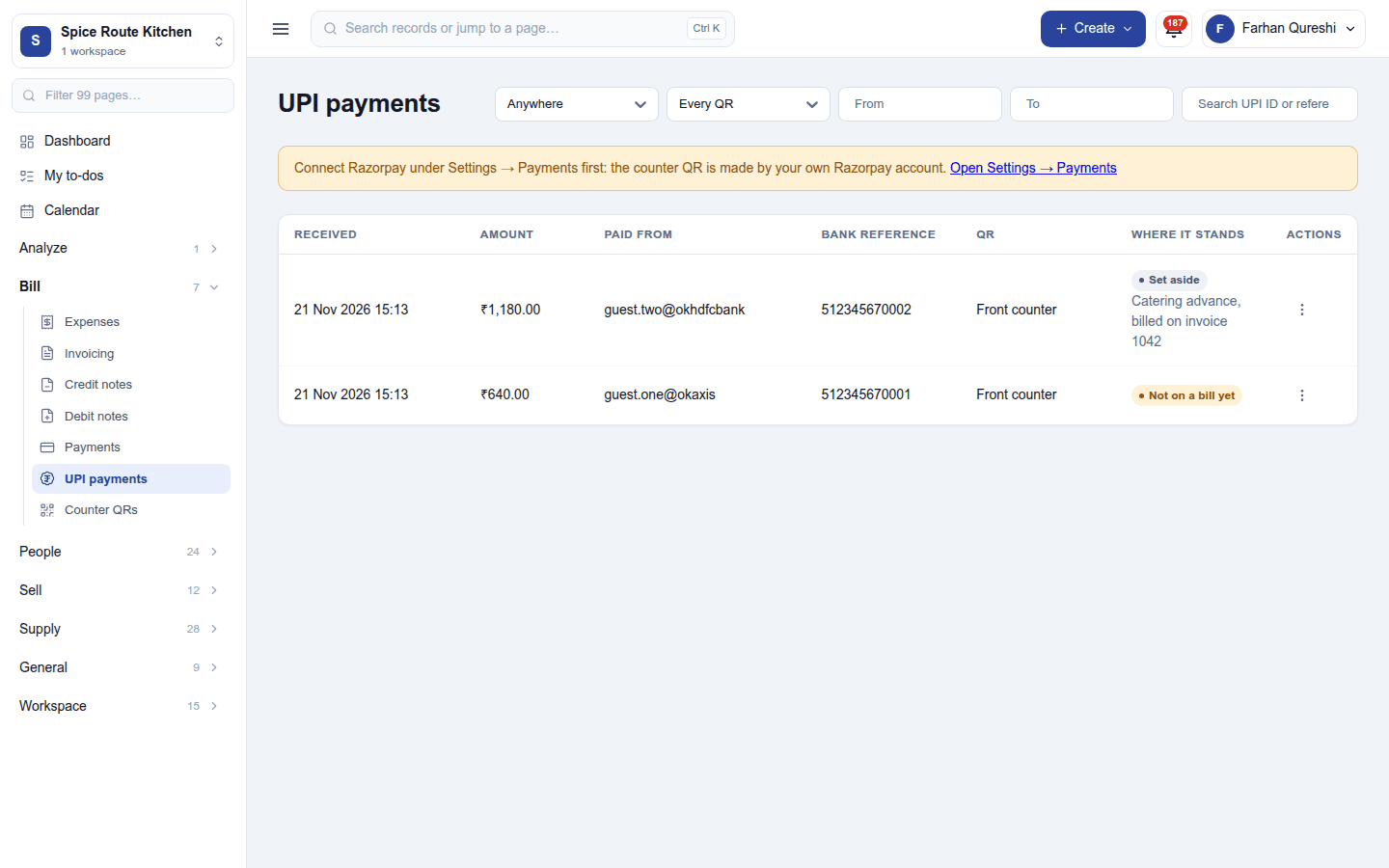
Bill → UPI payments lists every payment on your UPI QRs, from both kinds of QR: when it arrived, the amount, the payer's UPI ID, the bank reference (UTR) and the QR. Where it stands says one of:
- Not on a bill yet: a counter payment no till has taken.
- At a till: a till has it and the sale is not finished.
- On a bill: the sale took it (the bill number links to the invoice).
- Set aside: a manager marked it as belonging to no till sale, with a note.
- Being refunded: money that came in after the till let its QR go, going back to the customer.
PhonePe and Paytm do not tell us the payer's UPI ID, so Paid from shows a dash for their payments; the bank reference is there.
Filters: where the money stands, which kind of QR, a search over the UPI ID and the bank reference, and the days it arrived on.
Under Where it stands, a counter payment on a bill also says how it got there: Its printed bill settled by itself or Matched to its bill at the till. A payment kept unsettled says Kept unsettled at the till.
⋮ Set aside… (on a counter payment not on a bill yet) asks What was it for?, for example a catering advance billed on an invoice, and takes it off every till's list. ⋮ Put back on the tills' lists undoes it.
Payment alerts
Every payment on either kind of QR is announced the moment it is recorded: UPI payment received: ₹1,240.00 from rahul@okaxis · Front counter, with a short chime, on whatever screen each person is on. Everyone who may see UPI payments hears it. The chime follows the module's setting. A screen announces only payments that arrive while it is open, never old ones.
Settings
Settings → UPI QR payments has the Payment company card (needs Manage UPI QRs; see above) and these settings (needs Manage settings):
| Setting | What it does | Default |
|---|---|---|
| Counter payments the till lists (minutes back) | How far back the till's Paid on a counter QR? list goes (10 to 1,440 minutes) | 120 |
| Play a sound with each payment alert | The chime with each alert on the web app and the desktop till | On |
| Settle a printed bill by itself when a counter payment is its exact amount | A counter payment of exactly one printed bill's total settles that bill (see Payments matched to printed bills). Off: the till asks about every counter payment | On |
Permissions
| Permission | Allows |
|---|---|
View UPI payments (upi_qr.view) |
See the payments received on the UPI QRs and hear an alert as each one arrives. Admin, Manager, Staff and Read only have it. |
Manage UPI QRs (upi_qr.manage) |
Make and close counter QRs, and set a payment aside or put it back. Admin and Manager have it. |
Using a payment at the till needs the till's own Use the till permission. Matching a payment to a printed bill, keeping it unsettled, and Rematch need Settle bills (pos.settle); giving the difference as a discount also needs Give discounts (pos.discount).
Ready-made automations
None. Every payment is announced to the screens and the apps already.
Turning it off
The till shows the plain QR of your UPI ID again, with the words UPI QR payments is switched off in Modules, and the cashier checks the customer's screen. UPI payments and Counter QRs leave the menu and the alerts stop. Counter QRs stay open on Razorpay (close them first if they are printed), and payments already received are kept.
In the desktop and mobile apps
- Restaurant POS (desktop): the till's QR, the Paid on a counter QR? list, the payment alerts, the matching popup and the Rematch notice work as on the web while the computer is online. A bill settled by itself leaves the desktop's floor at its next sync, within seconds. Offline, the till shows the plain QR and records the payment as UPI - to be confirmed.
- Restaurant Captain (phone): each payment is announced on the waiter's phone with a vibration and a sound, for anyone who may see UPI payments. With the app open, the notice shows in the app. With the app closed, the phone shows a notification (UPI payment received: ₹1,240.00 · Front counter). The notification never names the payer, because a locked phone's screen can be seen by anyone nearby. It reaches a phone only while that person is signed in on it. When the payment settled a printed bill by itself, the notice in the app ends with Bill … settled by itself, and the table is free on the phone's floor. The matching popup and Rematch are the till's: the phone does not ask.